GKE clusters
Google Kubernetes Engine clusters from all your accounts, and kubectl without gcloud. Port-forwards, logs and shells run in the app.
Updated
The GKE area
GKE in the sidebar (⌘3) opens on All clusters: every GKE cluster in the pinned projects of every signed-in account, grouped by account and project, with its location, mode, version, node count and Access, the way this Mac reaches its control plane. Open Cluster, a double-click or ↩ opens a cluster; the switcher at the top of the kind list changes it.
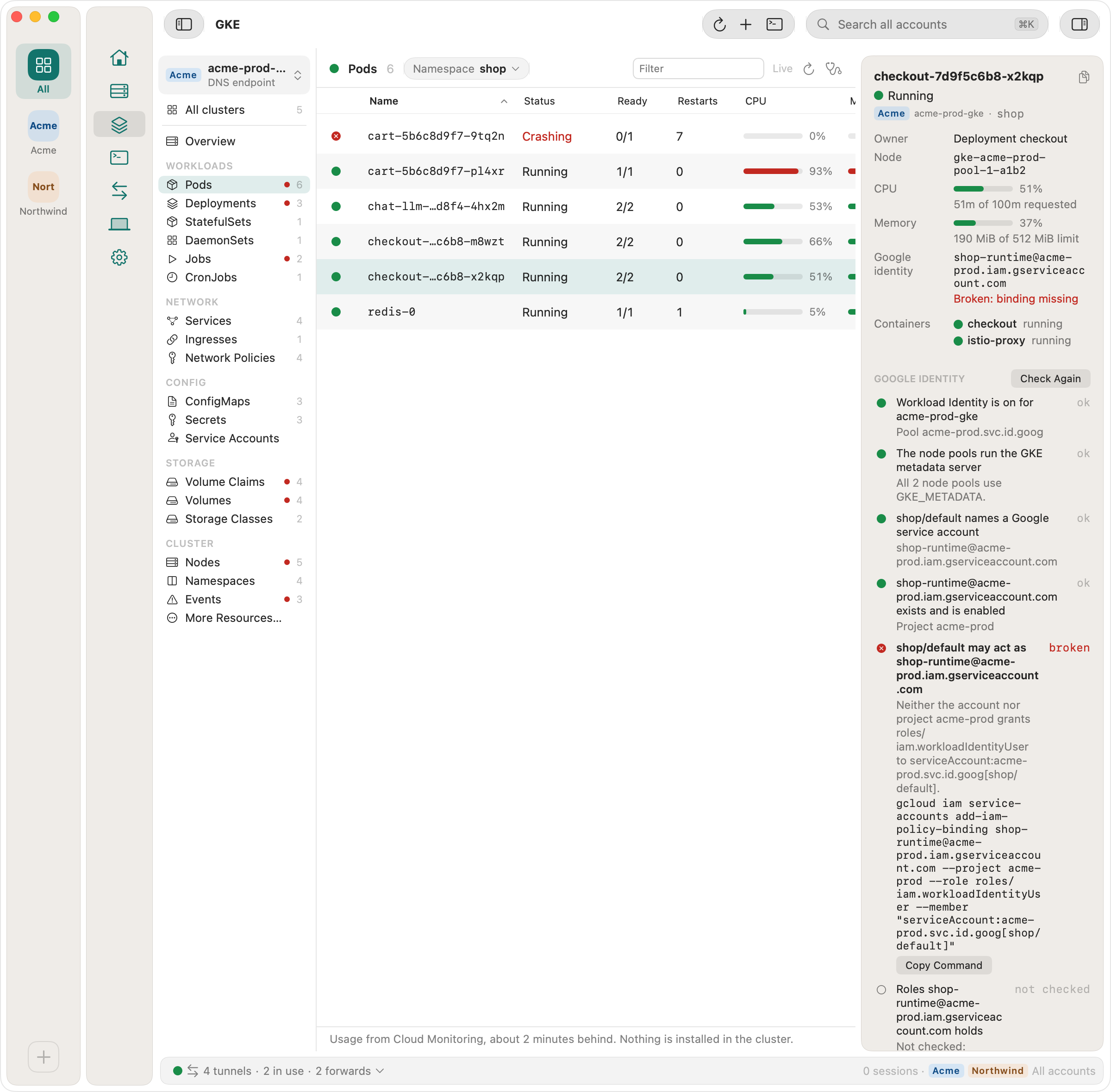
The kind list follows the cluster's objects: Overview, then Pods, Deployments, StatefulSets, DaemonSets, Jobs and CronJobs; Services, Ingresses, Gateways (when the cluster serves Gateway API) and Network Policies; ConfigMaps, Secrets and Service Accounts; Volume Claims, Volumes and Storage Classes; Nodes, Namespaces, Events and More Resources…. The Namespace chip picks one namespace, several, or All namespaces. Selecting a row shows its details in the inspector. Tabs update as soon as the cluster changes. A kind your account can't watch refreshes every 10 seconds, and a line above its rows says so.
CPU, memory and volume bars come from Cloud Monitoring, which GKE fills with system
metrics on its own; Ostgate installs nothing in the cluster. Your account needs
monitoring. in the cluster's project; without it the bars
read “—” and say why.
A Service Account shows the Google service account Workload Identity maps it to, whether it mounts a token, its image pull secrets and the pods that run as it. A Gateway shows its class, addresses, listeners, conditions and the HTTPRoutes attached to it with their backends.
In an object's inspector, Related links what surrounds it: a pod's
owner, Services, ConfigMaps, Secrets, claims, service account and node, and for a ConfigMap
or Secret, Used by names the workloads and pods that reference it
(how to find them with kubectl). Conditions list
only what isn't OK. Labels and annotations are folded. A Deployment or StatefulSet shows its
HorizontalPodAutoscaler and PodDisruptionBudget. Copy kubectl Command copies
get, describe and, for a pod, logs and exec
with the context you exported. If an object is deleted while selected, its details stay
dimmed with the time, and a pod offers Open replacement. A section Ostgate couldn't
read says what is missing in one line.
More Resources… lists every other type the cluster serves, custom resources
included, with its group, scope and how many objects it holds. Open a type to see its
objects with the columns kubectl get prints; the list reads again every 10
seconds while it is on screen. ⌘K finds a type by its name, short name or group.
Secrets are listed with their type and key count. Selecting one shows its key names; Show reveals one value and Copy value copies it. A revealed value hides again after 60 seconds, when you select something else or leave the window, and a copied one is cleared from the clipboard after 60 seconds.
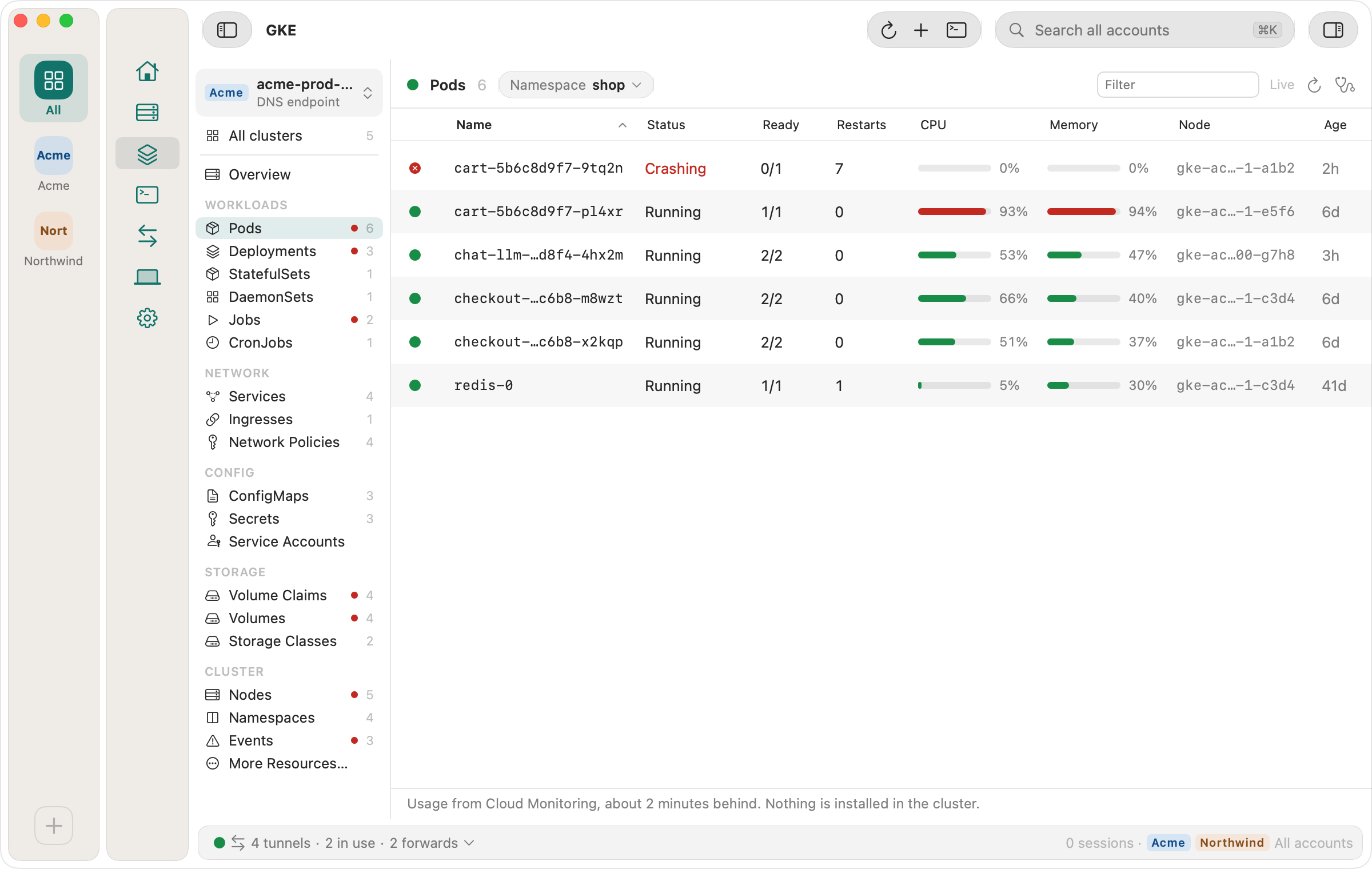
Security findings
A cluster's Overview counts the whole cluster's security findings under SECURITY · WHOLE CLUSTER as Risk, Not checked and Mitigated. A click opens them in a tab: cluster settings such as anonymous requests, legacy ABAC, Shielded nodes and whether Network Policies take effect, who holds cluster-admin, pods checked against the Pod Security Standards (privileged, host namespaces, hostPath, running as root), Secrets in environment variables, and GKE's workload audit from the last 30 days and its diagnosis insights. Each row says why it matters and how to fix it, and a list your account may not read counts as Not checked.
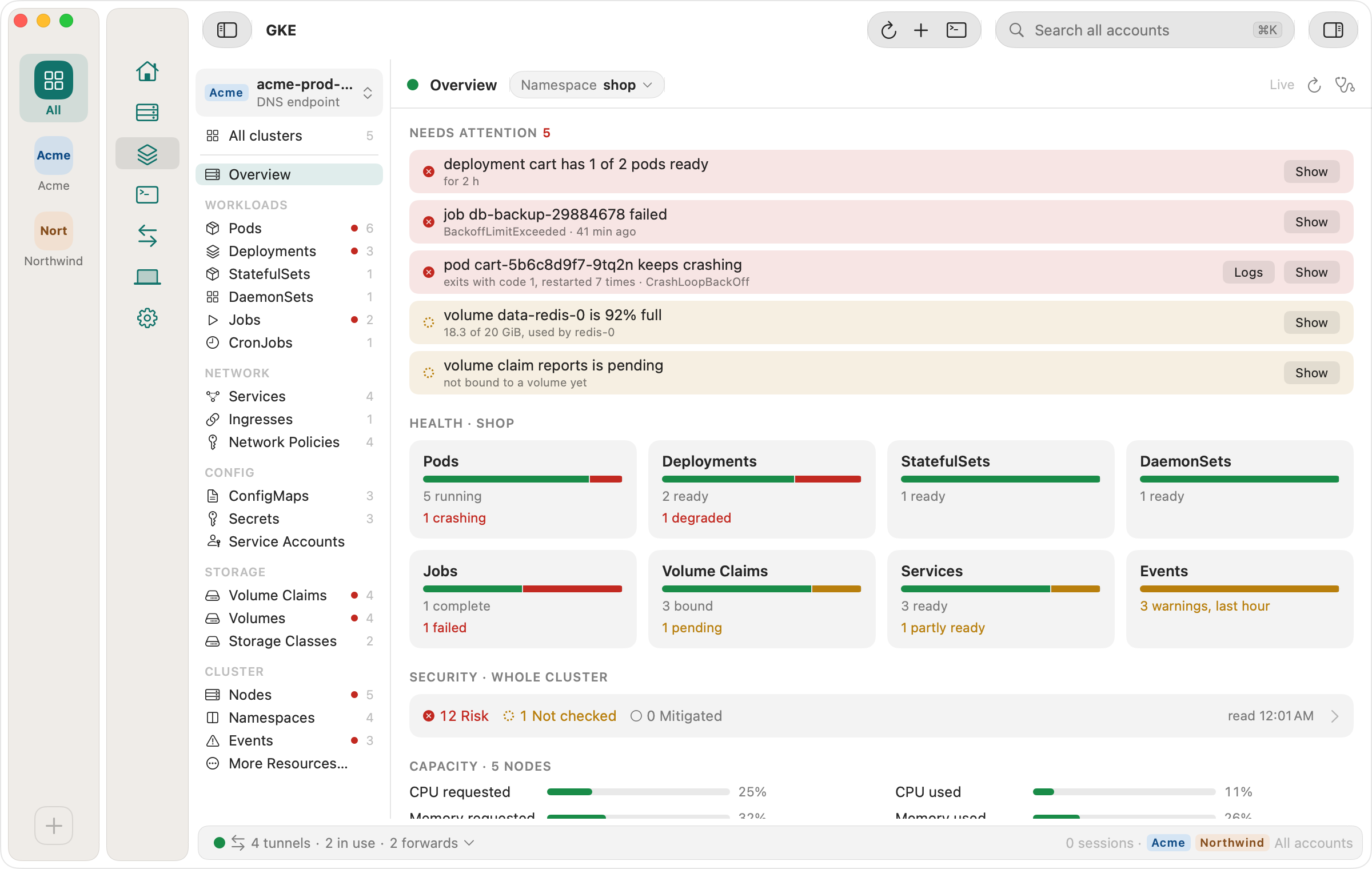
Cost and rightsizing
Open Cost on a cluster's Overview opens its Cost tab, priced at today's list prices from Google's catalog: per node pool on Standard, by pod requests on Autopilot, with the cluster fee and the idle capacity per pool. RIGHTSIZING suggests requests and memory limits from 14 days of use, never below the minimums Kubernetes' autoscaler uses on Standard or Autopilot's own minimums, skips GKE's own workloads and says what each change saves or costs a month. OUT OF MEMORY lists containers killed for memory, limits above a node's memory and the nodes' kernel kills. Discounts and credits are not applied.
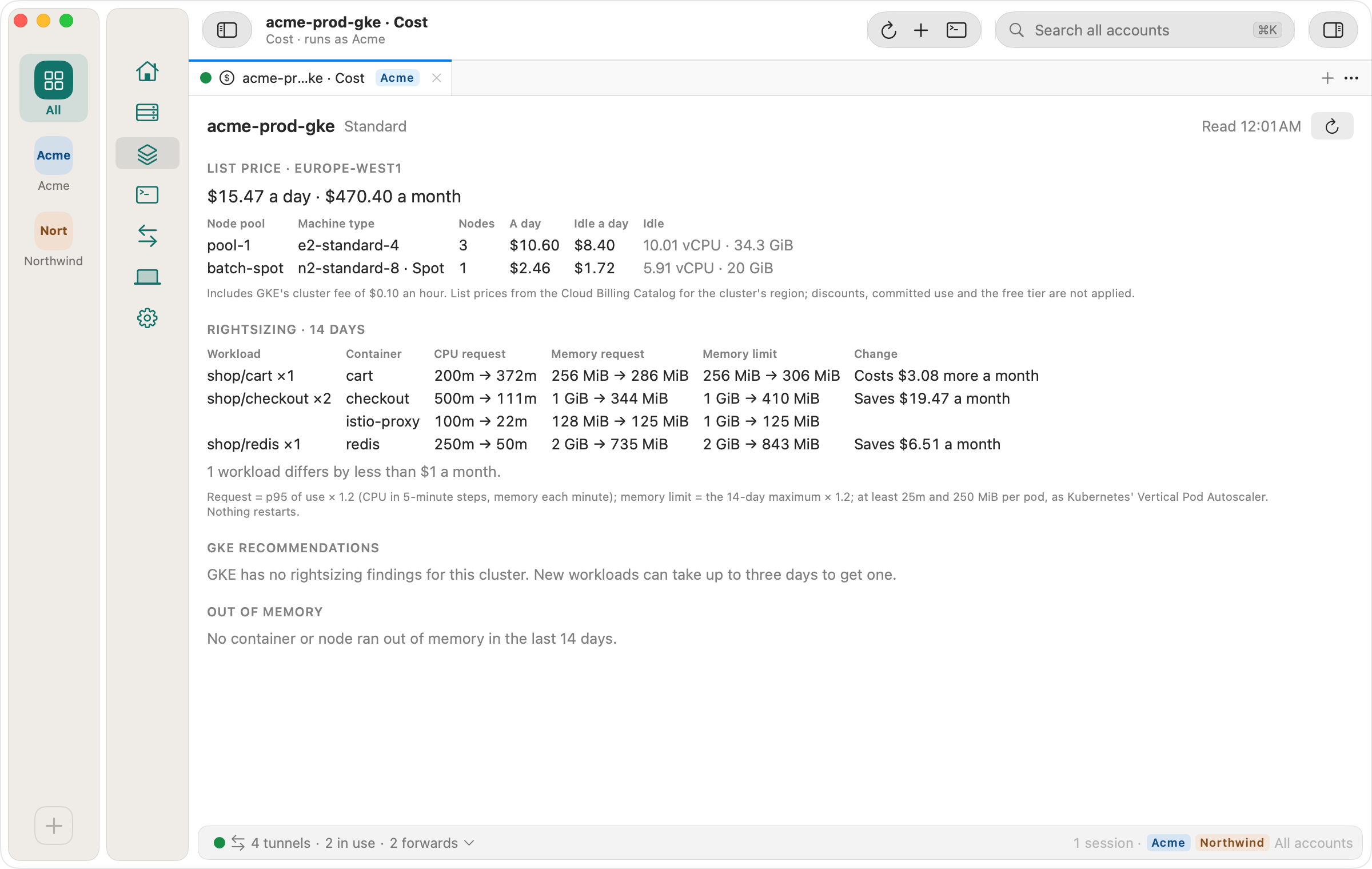
Google identity and traffic path
Pods, workloads and Service Accounts show which Google identity they run as. On a pod, Ostgate checks the Workload Identity chain, from the node pool to the roles the Google service account holds, and names the first broken link with the command that fixes it; Copy Command copies it and Check Again reads the chain again.
A Service, Ingress or Gateway shows its Traffic path in the inspector: forwarding rule, URL map, backend service and network endpoint group down to each pod, with Google's health check result beside the pod's readiness.
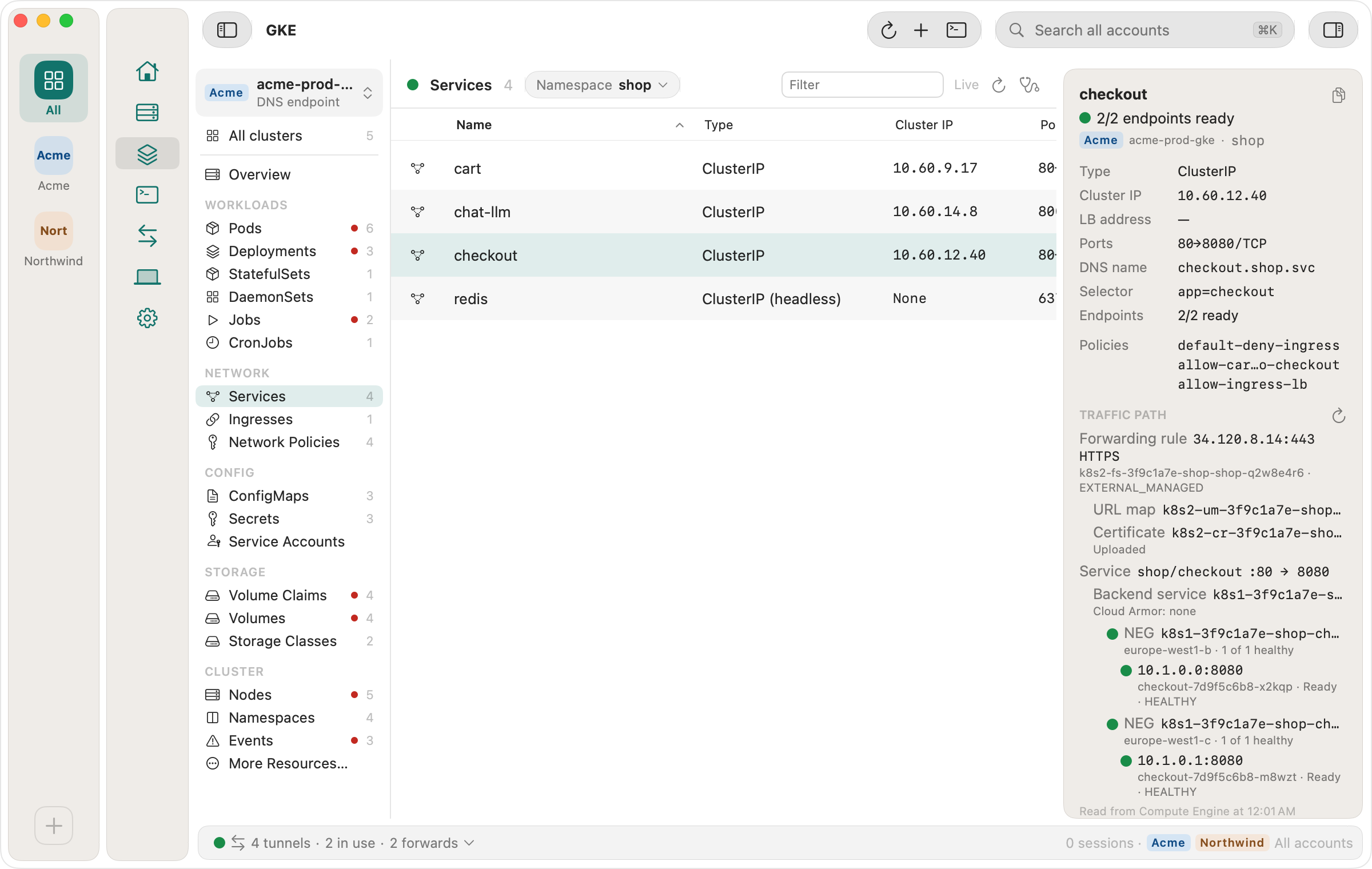
How Ostgate reaches a cluster
Ostgate reads each cluster's endpoint settings and picks a path, shown in the Access column:
- DNS endpoint: the cluster's
gke.googname, reached over the internet and signed in with your Google account. - Connect gateway: for a cluster registered in a fleet, Google relays the requests
to the control plane. Your account needs a gateway role such as
roles/to list and read. Port-forwards and a shell in a container also needgkehub. gatewayReader gkehub.gateway.stream, which among the predefined roles onlyroles/holds; a custom role with the reader's permissions plus that one is enough.gkehub. gatewayAdmin - Internal endpoint: the control plane's private address, straight from your Mac over a VPN or interconnect, or through a bastion VM over IAP. The bastion is a running Linux VM on the cluster's network in one of your pinned projects; Ostgate marks which ones the cluster's authorized networks admit.
- Public endpoint: works only from addresses in the cluster's authorized networks when they are enforced.
A cluster no path reaches reads Unreachable with the reason. Diagnose
Access…, in a cluster's menu and its inspector, checks each step of the path in order:
the endpoint settings, the bastion's region and subnet, authorized networks, your IAM
permissions in the project and your Kubernetes permissions. A failing row names the setting
and, where one exists, the gcloud command that fixes it, for whoever administers the project. For a public endpoint
with authorized networks it asks Ostgate's licence server for your Mac's public address
(see Privacy). The checks by hand, with each error
kubectl prints, are in kubectl
times out on a GKE cluster.
kubectl without gcloud
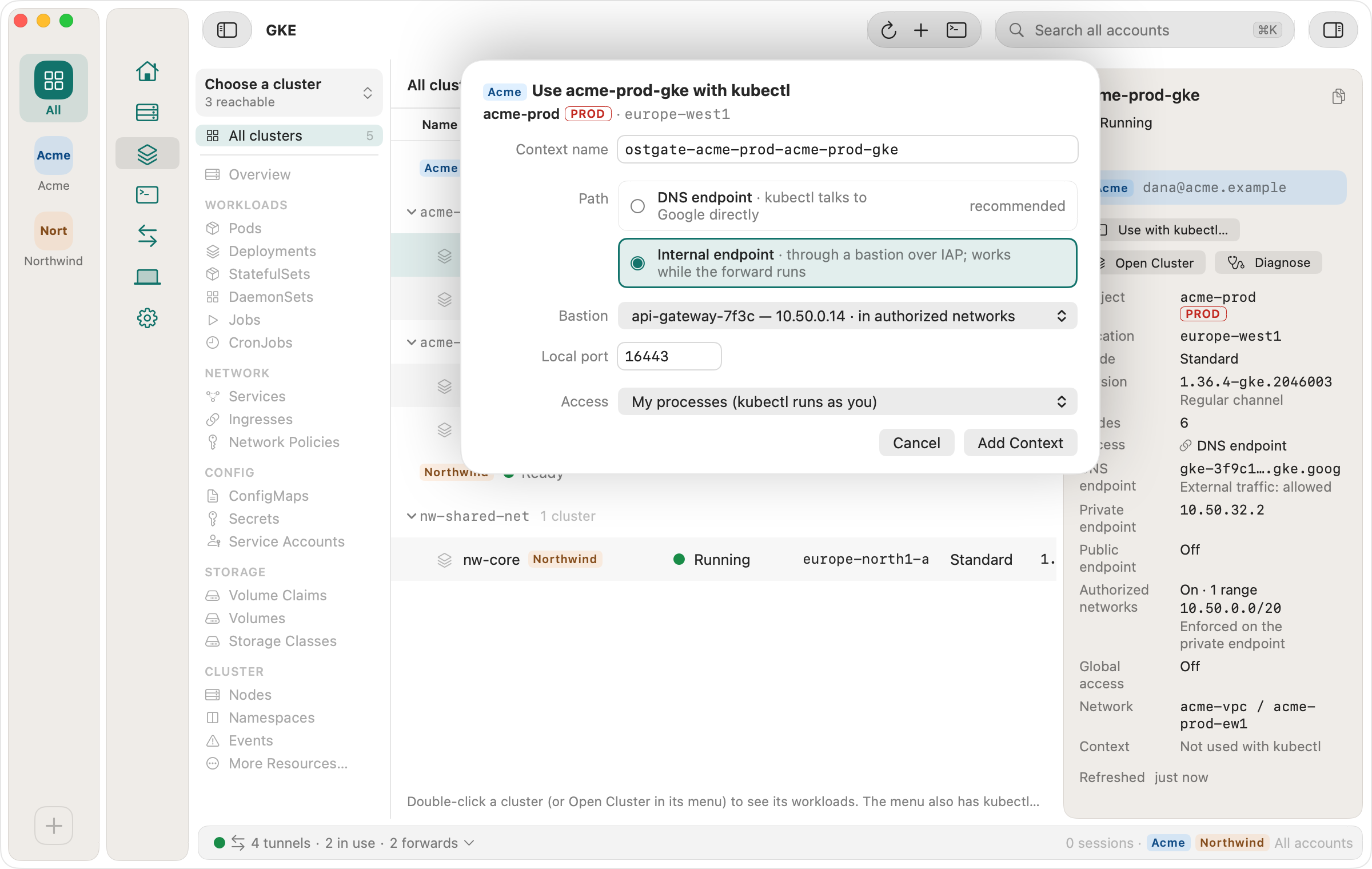
Use with kubectl… on a cluster adds a context for it to
~/.kube/ostgate, a kubeconfig file Ostgate owns. Your own
~/.kube/config is not changed. The sheet asks for:
- Context name, by default
ostgate-;<project>- <cluster> - Path, one row per path the cluster allows, with Ostgate's pick marked “recommended”;
- for the internal endpoint through a bastion, the Bastion VM, the Local port (from 16443) and Access: My processes, so kubectl, which runs as you, may connect, or Any local process… after you confirm.
Add Context writes the file and shows two commands to copy:
export KUBECONFIG="$HOME/.kube/config:$HOME/.kube/ostgate"
kubectl --context ostgate-acme-prod-acme-prod-gke get namespaces
kubectl signs in by running Ostgate, which hands it a short-lived token of the account the context belongs to. The same file works for k9s and other tools that read a kubeconfig, and the sign-in works while Ostgate is not running. The bastion path is the exception: kubectl reaches the cluster only while its forward, “GKE <cluster>”, runs in Ostgate. The forward is listed under Connections.
The guide kubectl for GKE without gcloud on a Mac compares this with the other routes.
When Ostgate can't sign kubectl in, kubectl prints one line from Ostgate that names the next step, for example “Sign in again in Ostgate (dana@acme.example).” Opening the sheet again edits the context; Remove Context… deletes it and its forward.
Port-forwards
Forward Port… on a pod or a Service, in its menu or inspector, opens a forward to
one of its ports. How this differs from kubectl port-forward is in
Port-forward to a GKE Service that survives
pod restarts. For a Service, Address chooses between:
- Cluster name: the Service's own name, such as
checkout., on its own loopback address at the Service's port numbers, so a URL or a connection string works unchanged on your Mac. It needs the Ostgate port helper, which writes the name toshop. svc. cluster. local /etc/hostswhile the forward runs (see Tunnels and forwards). - Local port on
127.0.0.1.
Access defaults to My processes, and Start when Ostgate opens brings the forward back with the app. A Service forward keeps listening while pods are replaced: each connection goes to a ready pod of the Service, and while none is ready the forward shows Waiting for a pod and holds new connections for up to 10 seconds. A pod forward ends when its pod is gone and says so. Running forwards are listed under Connections, with Show Logs for the pod serving them.
A cluster whose only path is its public IP endpoint can't be forwarded yet; turn on its
DNS endpoint, or run kubectl port-forward after Use with kubectl….
Logs
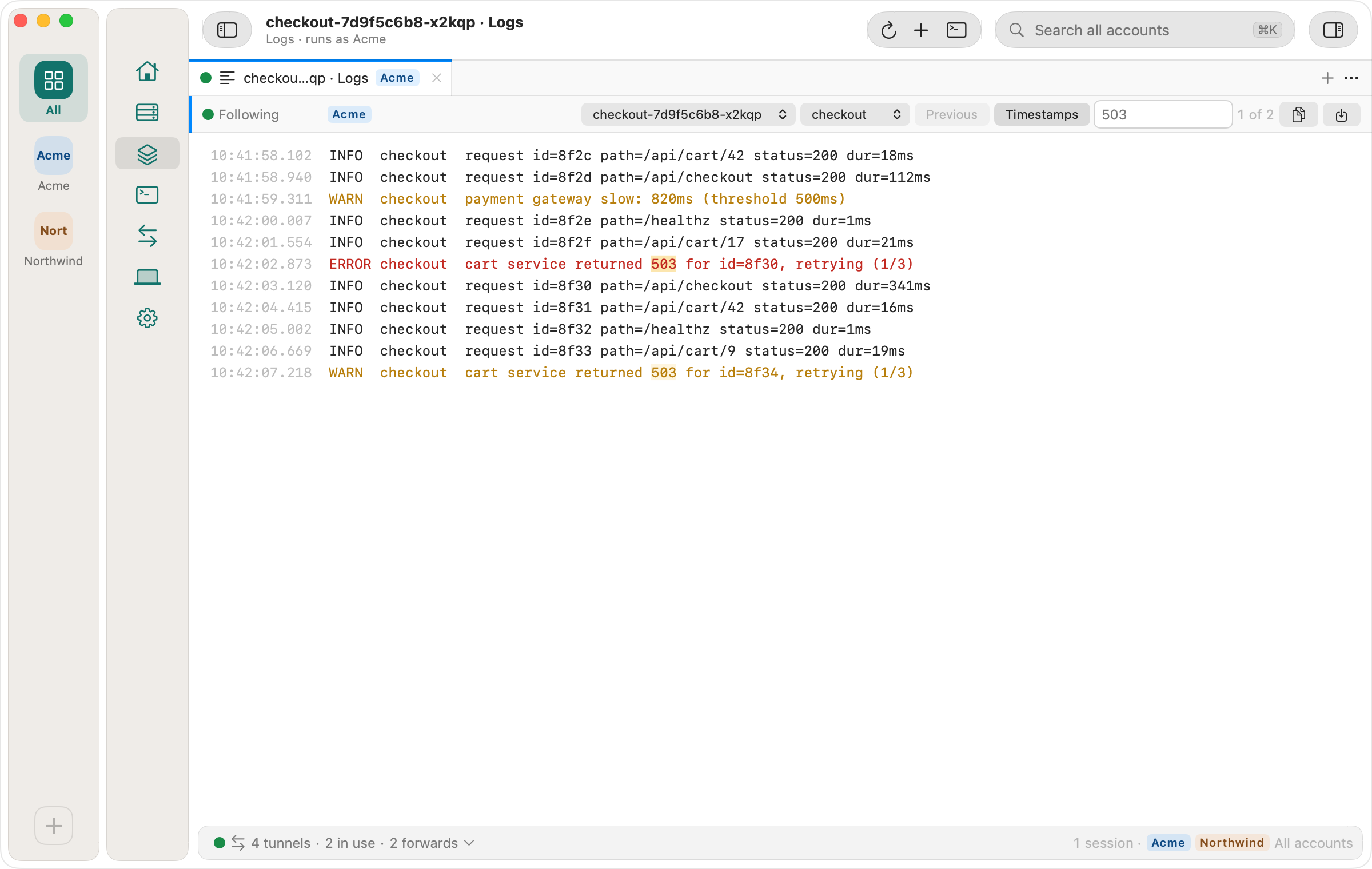
Logs on a pod, or Show Logs in its menu, opens a tab that follows one container's log, starting from its last 500 lines. The bar picks the pod (the other pods of the same owner are listed, so a replaced pod is one click away) and the container, with init and sidecar containers marked. Previous shows the run that ended last, Timestamps shows each line's time, and the search field (⌘F) highlights matches. Space pauses the view while the stream keeps reading, and a capsule at the bottom counts the new lines. Copy copies the selection, or the whole log without one, and Save… writes the whole log to a file.
When the stream drops, the tab reconnects by itself and continues from the last line it showed, without repeating lines. When the pod is deleted or restarted, the tab says so and the pod picker offers the new one. The tab keeps up to 50 000 lines.
Show Logs (All Pods) in the menu of a Deployment, StatefulSet, DaemonSet or Job opens one tab for all its pods. Their lines are merged in time order, and each line starts with a short pod tag in a colour of its own. A pod that starts during a rollout or a scale-up joins the tab, and a pod that goes away keeps its lines, greyed, after a line saying it is gone. Up to five pods are followed at once; with more, the pod menu says "5 of 12 pods" and lets you choose which ones to follow. The pod menu can also show one pod's lines only.
YAML
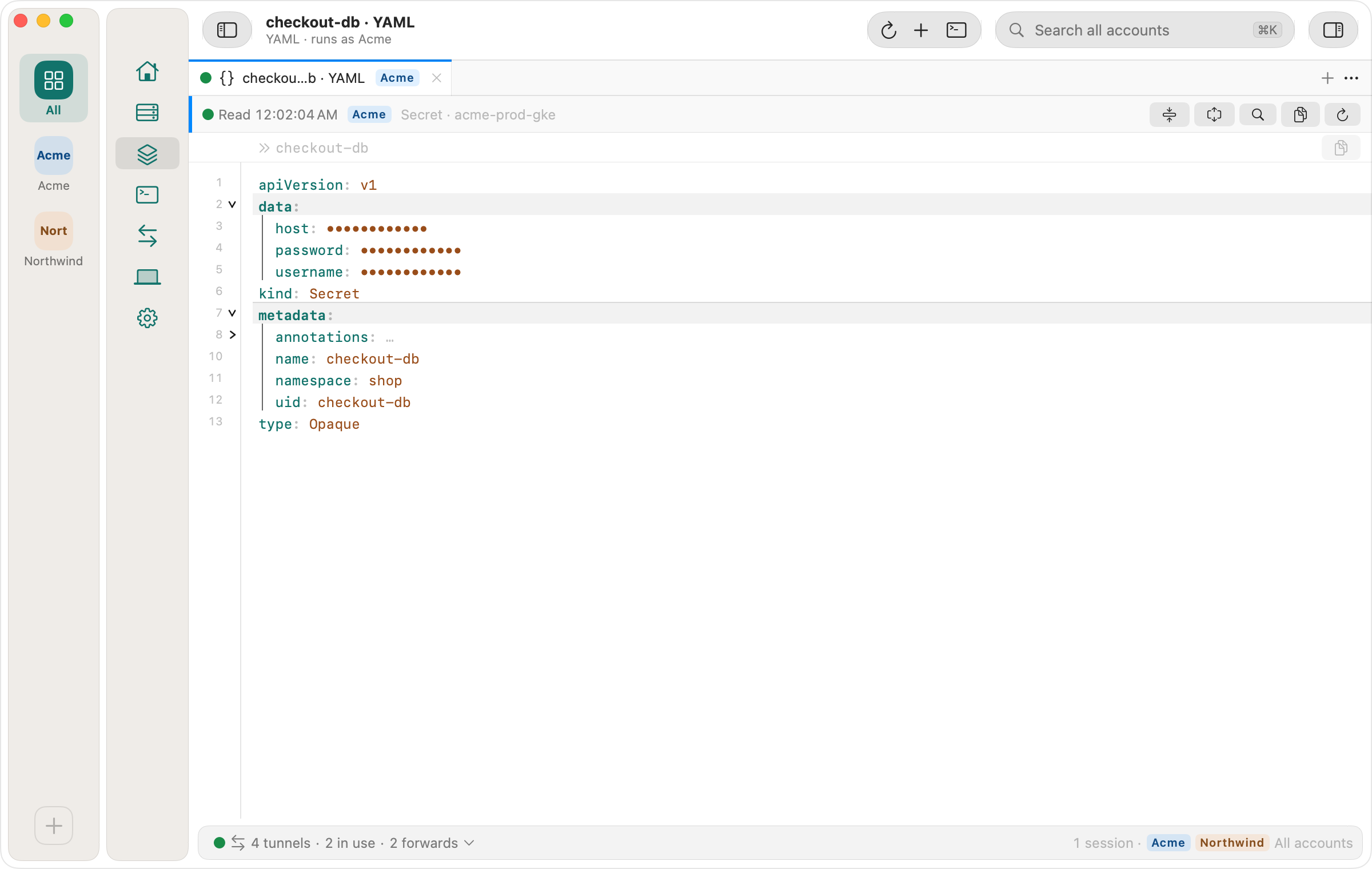
YAML in the inspector, or Open YAML in a row's menu, opens the object as
the cluster returns it, read-only, in a tab. managedFields is left out, and
status and the annotations start folded. A chevron next to each block folds it,
the bar above the text shows the path of the line under the caret, such as
spec › template › spec › containers[0] › resources, and ⌘F finds
text. Copy copies the selection, or the whole text without one, Copy Value the
value on the caret's line and Copy Path that path.
When the object changes on the cluster, a bar says so and Reload reads it again,
keeping your folds and place; the text never moves under you. In a Secret every value,
and the last-applied-configuration annotation that repeats them, reads as dots.
Show on a key reveals that one value for 60 seconds, and nothing you copy from the
tab or drag out of it ever holds a value.
Shell in a container
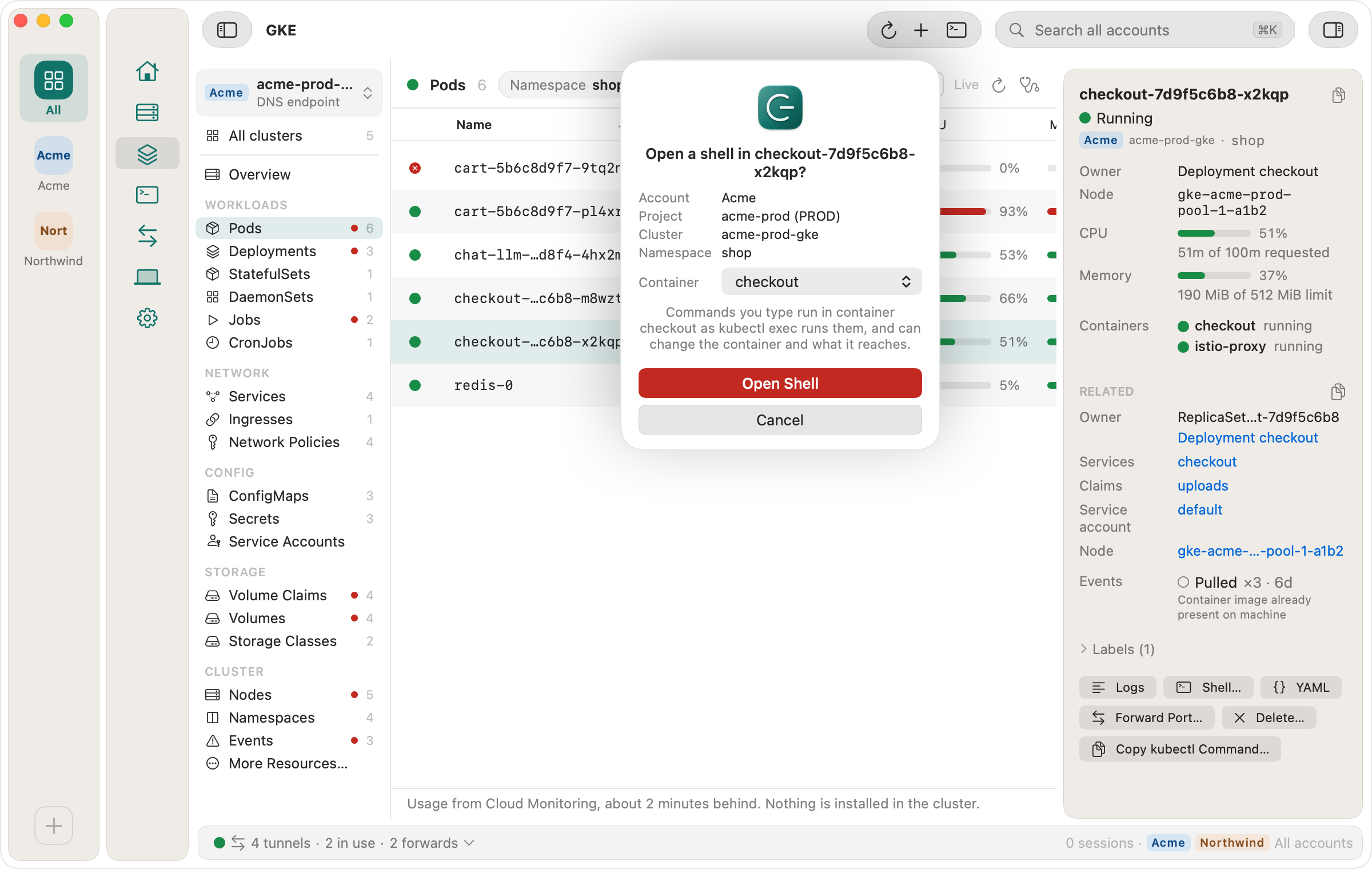
Open Shell… in a pod's menu, or Shell… in its inspector, opens a terminal
tab in one of the pod's containers, like kubectl exec -it.
Before anything opens, Ostgate asks the cluster whether your account has get
and create on pods/exec in that namespace, and says which one is
missing when it doesn't. Then it asks you to confirm, naming the namespace, the cluster,
its project and your account, with PROD or STAGING when the project ID says so. If the
pod has more than one container, you pick it in the same dialog; the one its
kubectl.kubernetes.io/default-container annotation names is chosen already.
The tab starts bash, or /bin/sh if the image doesn't have it.
An image built without a shell, such as a distroless one, gets “No shell
in” and the container's name instead of a terminal. The line under the terminal
shows the shell's exit code, or the reason if the cluster ends the stream first (the Connect
gateway does after about 30 minutes). A shell tab never reopens by
itself, even after a relaunch; open a new one from the pod.
Ostgate can't open a shell on a cluster it reaches only through the public endpoint yet:
turn on the cluster's DNS endpoint, or run kubectl exec after
Use with kubectl…. The roles and RBAC rules exec needs are in
kubectl exec forbidden on GKE.
Restart and delete
Restart… on a Deployment, StatefulSet or DaemonSet replaces its pods under its
rollout strategy, as kubectl rollout restart does. Delete Pod… on a
pod deletes it, and its controller, if it has one, creates a replacement. Both ask first
and name the account, project, cluster and namespace. Ostgate asks the cluster whether your
account may do it; when it may not, the action is disabled and says which permission is
missing. Why a restart can replace only some of a StatefulSet's pods is in
kubectl rollout restart on a
StatefulSet or DaemonSet.
Problem notifications
Notify Me About Problems in a cluster's menu turns on macOS notifications for that cluster. It is off until you turn it on, and the first time macOS asks whether Ostgate may notify. While Ostgate runs, with or without a window open, it watches the cluster's pods, nodes and Deployments and notifies you when a pod keeps crashing, runs out of memory or stays Pending for more than 5 minutes, when a node is not ready or under pressure for more than 2 minutes, or when a rollout passes its deadline. Problems that already exist when you turn it on are listed but not notified, and a crash loop notifies once, not on every restart. Clicking a notification opens the cluster with that object selected.
The menu bar panel lists each of these clusters under CLUSTER HEALTH with its problem count and the first three problems, and the menu bar icon gets a red dot while one of them has a serious problem. Notifications are made on your Mac; nothing about your cluster is sent anywhere else. A cluster reached only through a bastion VM says to open it instead, because its connection belongs to a window.
Model servers and GPUs
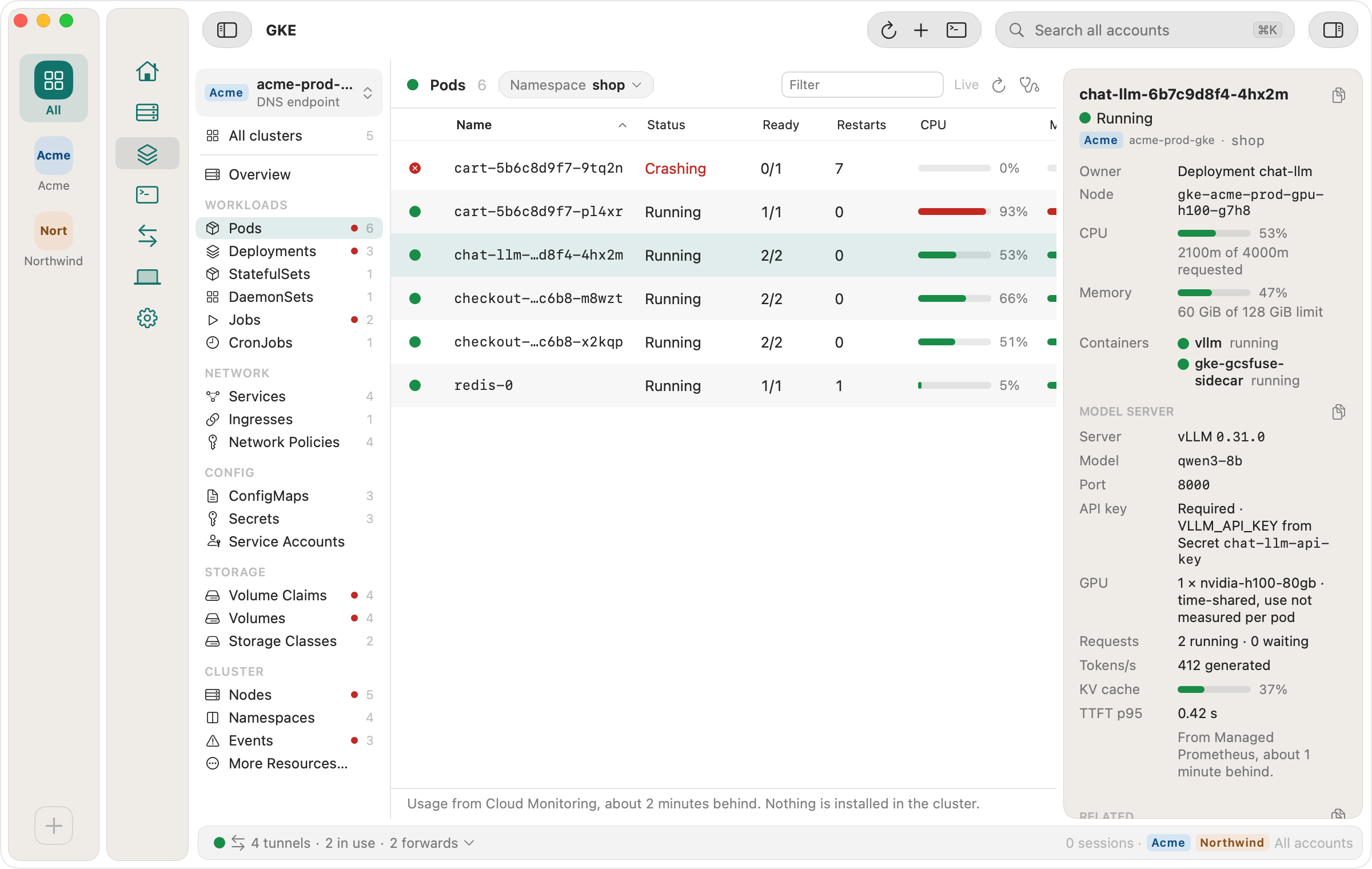
On a cluster with GPU nodes the Nodes tab adds a GPU busy column, and a node's inspector shows GPU busy and GPU memory, read from NVIDIA DCGM through Cloud Monitoring's Prometheus API, or from GKE's own accelerator metrics where DCGM reports nothing. A pod, Deployment or Service running vLLM gets a Model server block: version, model, port, whether it needs an API key and which Secret holds it, its GPU, and, when Managed Service for Prometheus collects the server's metrics, requests, tokens per second, KV cache use and time to first token.
A forward to a model server adds Copy Base URL and Copy curl. The curl
command reads the key from OPENAI_API_KEY in your shell; Ostgate never reads
or shows the key itself.
Licence
GKE is part of every licence and of the 7-day trial. You need a trial or a licence to open a cluster, a forward, a Logs tab or a shell and for kubectl to sign in through Ostgate, the same as for SSH sessions and tunnels. kubectl's sign-in reads the licence state Ostgate saved and makes no network call for it.