GCP VM SSH not working: permission denied, port 22
SSH to a Compute Engine VM fails in one of three places: IAM refuses you before anything connects, the network never reaches port 22, or the VM's SSH server refuses your key. The message tells you which. Find yours in the table, then follow its section.
By Ostgate · Updated
Messages at a glance
The messages below are quoted from Google's
Troubleshooting SSH errors
page, the gcloud CLI source (version 541.0.0) and OpenSSH. Upper-case words such as
USERNAME stand for your values.
| Message | Where | Usual cause |
|---|---|---|
| You do not have sufficient permissions to SSH into this instance | Cloud Console | A missing OS Login, service account or metadata role |
USERNAME@ |
ssh, gcloud | The key is stored where this VM does not look, or the account lacks an OS Login role |
ERROR: (gcloud.compute.ssh) Could not SSH into the instance. |
gcloud | A new key not applied yet, a firewall rule, or sshd |
| Could not connect, retrying ... | SSH-in-browser | VM still booting, guest agent stopped, roles, firewall, full disk |
| Unauthorized Error 401 | SSH-in-browser | A Google Workspace policy blocks SSH-in-browser |
| We are unable to connect to the VM on port 22. | Cloud Console | No firewall rule, sshd down or on another port, guest firewall |
[/usr/bin/ssh] exited with return code [255]. |
gcloud | Any failure of ssh itself; read the lines above it |
port 22: Connection timed out, port 22: Connection refused |
ssh from a bastion or your machine | Firewall rule (timed out) or nothing listening (refused) |
Code: 4003 / Reason: failed to connect to backend |
Through IAP | No rule for 35.235.240.0/20, or nothing listening on 22 |
USERNAME@ |
ssh, gcloud | The key was refused; on Windows, the user does not exist |
Through Identity-Aware Proxy, IAP's own errors come first: 4033 means the
account lacks the tunnel role, 4003 that IAP could not reach port 22, and
4047 that the instance or zone was not found. Those are explained in
IAP tunnel error codes. This page covers the rest.
gcloud has its own checker. It tests your permissions, the VM's status, the VPC settings and the VM's boot, and prints what to fix:
gcloud compute ssh example-vm --project=acme-prod \
    --zone=europe-west1-b --troubleshoot --tunnel-through-iap
“You do not have sufficient permissions to SSH into this instance”
This is how users report the Cloud Console's refusal; Google's troubleshooting page does not print the sentence, but it lists the roles behind it. Which roles you need depends on how the VM accepts keys, so check that first.
Does the VM use OS Login? OS Login is on when the metadata key
enable-oslogin is TRUE. The instance's value wins when it is set;
otherwise the project's applies. In the Cloud Console, look under Compute Engine › VM
instances › example-vm › Details › Metadata and on the project's Compute Engine ›
Metadata page. From the command line:
gcloud compute instances describe example-vm --project=acme-prod \
    --zone=europe-west1-b --format="yaml(metadata.items)"
gcloud compute project-info describe --project=acme-prod \
    --format="yaml(commonInstanceMetadata.items)"
Then compare with what Google requires:
| Role | Who needs it | Granted on |
|---|---|---|
roles/compute.osLogin, or roles/ for sudo |
Everyone, on a VM with OS Login | Project or instance. For SSH from the Console or gcloud, the project, or add a project-level role with compute.projects.get |
roles/ |
Everyone, when the VM runs as a service account | The service account |
roles/ |
Users from another organization than the VM's | The organization, by an organization administrator |
roles/ |
Everyone, on a VM without OS Login: it lets gcloud or Ostgate write your key into the instance's ssh-keys metadata |
Project or instance, plus the service account role above when the VM has a service account |
roles/ |
Everyone who connects through IAP TCP forwarding | Project or instance |
Grant roles on the project's IAM & Admin › IAM page, and the service account role on that service account under IAM & Admin › Service Accounts. An administrator who uses the command line can run, for example:
gcloud projects add-iam-policy-binding acme-prod \
    --member=user:alice@example.com --role=roles/compute.osLogin

gcloud iam service-accounts add-iam-policy-binding \
    PROJECT_NUMBER-compute@developer.gserviceaccount.com \
    --project=acme-prod \
    --member=user:alice@example.com --role=roles/iam.serviceAccountUser
The second command uses the default Compute Engine service account; replace it with the one shown on the VM's Details page. The full IAP checklist is in IAP TCP forwarding firewall and IAM.
Permission denied (publickey)
OpenSSH prints this when the server refused every key you offered and offers no other method:
USERNAME@VM_EXTERNAL_IP: Permission denied (publickey).
Google lists these causes, roughly in order of how often they apply:
- The key is in the wrong place for this VM. A VM with OS Login ignores keys in
project or instance metadata; a VM without OS Login ignores keys in your OS Login profile.
Turning OS Login on also deletes the VM's
authorized_keysfiles. - OS Login is on, and the account lacks
roles/compute.osLoginorroles/. See the role table.compute. osAdminLogin - Wrong username. With OS Login you log in as the POSIX username in your Google
profile, not as a local name you chose. A local account with no Google identity is refused
on an OS Login VM. With metadata keys, the username is the one written in front of the key
in
ssh-keys. - The key expired. Keys that the Console or gcloud add to metadata carry an expiry.
Google notes that when such a key expired, Compute Engine deleted
~/.ssh/authorized_keys, including keys you had added by hand. - Your ssh command offers the wrong key, because
-iis missing or points at another file. - Inside the VM: the guest environment is not running, so no key was written; the
boot disk is full, so the key could not be written; or
$HOME,~/.sshorauthorized_keyshas the wrong owner or mode.
How to tell which. Check OS Login as in the previous section. Then look where your key is:
gcloud compute os-login describe-profile
gcloud compute instances describe example-vm --project=acme-prod \
    --zone=europe-west1-b --format="yaml(metadata.items)"
describe-profile shows your OS Login keys and your POSIX username. Google notes
that if it returns no keys, the user may lack the permissions to sign in. The second
command shows the instance's ssh-keys, one user:key line each.
ssh -v shows which key files your client offered.
Fix. Put the key where the VM looks for it and connect as the matching user, or grant the OS Login role. For the in-guest causes, Google requires these owners and modes; the owner of each must be the user who connects:
| Path | Mode |
|---|---|
/home | 0755 |
$HOME | 0700, 0750 or 0755, by distribution |
$HOME/.ssh | 0700 |
$HOME/. | 0600 |
Fixing these, the guest agent or a full disk needs a way in that is not SSH: the serial console, or a startup script.
“Could not SSH into the instance”
gcloud prints this when ssh could not connect right after it published a key:
ERROR: (gcloud.compute.ssh) Could not SSH into the instance. It is possible that your SSH key has not propagated to the instance yet. Try running this command again. If you still cannot connect, verify that the firewall and instance are set to accept ssh traffic.
After publishing a key, gcloud keeps retrying SSH for up to 60 seconds before it gives up with this message. Run the command again once. If it fails again, the key is not the problem: check the firewall rule and sshd as in port 22. On a Windows VM, Google names a missing or misconfigured OpenSSH server as the cause.
SSH-in-browser: “Could not connect, retrying ...”
The SSH button in the Cloud Console opens SSH-in-browser. When it cannot get a session, it shows:
Could not connect, retrying ...
People also search for this as “authentication has failed”; Google's troubleshooting page does not use that wording, and the causes it lists for this message are the same ones:
- the VM has not finished booting, or booted in emergency mode;
google-guest-agent.is not running, so your key is never added;service - the account lacks the roles in the table above;
- no firewall rule allows TCP 22 (from
35.235.240.0/20when the VM has no external IP); - the boot disk is full, or the VM ran out of memory.
Check for emergency mode and memory in the serial port output, which needs no SSH:
gcloud compute instances get-serial-port-output example-vm \
    --project=acme-prod --zone=europe-west1-b | grep "emergency mode"
After a failure, SSH-in-browser offers Retry and Troubleshoot; Troubleshoot
runs the same tests as gcloud compute ssh --troubleshoot.
A different message, Unauthorized Error 401, means a Google Workspace
policy blocks SSH-in-browser and the serial console for your organization. Only a Workspace
administrator can fix it, by enabling Google Cloud for the organization and the services
that are not controlled individually.
“We are unable to connect to the VM on port 22”
Google documents the same failure in three forms, depending on the client:
Connection Failed
We are unable to connect to the VM on port 22.
ERROR: (gcloud.compute.ssh) [/usr/bin/ssh] exited with return code [255].
port 22: Connection timed out.
port 22: Connection refused
Return code 255 is OpenSSH's code for any failure of ssh itself, so the lines printed above
it say more than the code. Connection timed out usually means a firewall dropped
the packets; Connection refused means the VM answered but nothing listens on
port 22. The causes:
- The VM is still booting and sshd has not started. Wait and retry.
- No firewall rule admits the connection. Through IAP the source is
35.235.240.0/20; to an external IP it is your address or0.0.0.0/0. Through IAP this surfaces as4003, see failed to connect to backend. - sshd listens on another port. The rule must allow that port, and the client must use it.
- sshd is stopped or misconfigured. From the serial console as root,
systemctl status sshd.serviceshows why, andsystemctl restart sshd.servicestarts it again. - A firewall inside the guest, such as UFW, blocks port 22. See the next section.
- A kernel update left the VM unbootable. Google's fix is to attach the boot disk
to another VM and point
grub.cfgat the previous kernel, or to restore a snapshot.
To add the rule in the Cloud Console: VPC network › Firewall › Create firewall rule,
direction Ingress, source IPv4 range 35.235.240.0/20, TCP port 22. For an
administrator on the command line:
gcloud compute firewall-rules create allow-iap-22 \
    --project=acme-prod --network=default \
    --direction=INGRESS --action=allow \
    --rules=tcp:22 --source-ranges=35.235.240.0/20
To list the rules that already exist for port 22:
gcloud compute firewall-rules list --project=acme-prod | grep "tcp:22"
More on the rule, deny rules with higher priority and Shared VPC is in the firewall checklist. For SSH to a VM with no external IP at all, see SSH to a VM without a public IP.
Locked out after enabling UFW
Running sudo ufw enable without first allowing SSH blocks port 22 inside the
guest. The VPC firewall still admits the traffic, so IAP reports 4003 and a
direct connection times out. SSH cannot fix this, because SSH is what is blocked. The way in
is the interactive serial console:
- Enable it: VM instances › example-vm › Edit, under Remote access check
Enable connecting to serial ports, and save. This sets the metadata key
serial-port-enabletoTRUE, and needscompute.on the VM andinstances. setMetadata roles/on its service account.iam. serviceAccountUser gcloud compute instances add-metadata example-vm \ --project=acme-prod --zone=europe-west1-b \ --metadata=serial-port-enable=TRUE - The serial console logs in with a local password, which key-based SSH users normally do
not have. Google's procedure sets a root password with a startup script
(
echo root:PASSWORD | chpasswd) and restarts the VM. - Connect: VM instances › example-vm › Details › Connect to serial console.
- Log in and allow SSH:
ufw allow 22/tcp
ufw status
- Undo the access: lock root again with
sudo passwd -l root, remove the startup script, and setserial-port-enabletoFALSE.
Leave the serial console off when you are done. Google warns that an enabled serial
console accepts connection attempts from any IP address. Without serial console access, a
startup script that runs ufw allow 22/tcp and a restart of the VM have the same
effect.
SSH asks for a password
A password prompt is one of three things:
- A passphrase prompt such as
Enter passphrase for key '/Users/. This is your local private key, not the VM.alice/ .ssh/ google_compute_engine': ~/.is the key gcloud creates; enter the passphrase you set when it was created, or create a new key.ssh/ google_compute_engine - A Linux VM that refused your key and has password logins turned on in sshd. The prompt is the fallback after the key failed, so the fix is the key: go through Permission denied (publickey).
- A Windows VM with SSH. Google documents
USERNAME@
as a user that does not exist on the VM. The causes it names are an outdated gcloud CLI and a Windows VM without SSH enabled: setcompute. INSTANCE_ID's password: Permission denied, please try again. enable-windows-sshtoTRUEin instance or project metadata.
Full disk, guest agent and memory
These causes sit inside the VM, and any of them can produce the messages above. All three show up in the serial port output, which you can read without SSH:
gcloud compute instances get-serial-port-output example-vm \
    --project=acme-prod --zone=europe-west1-b \
    | grep -i -e "no space left" -e "out of memory" -e "emergency mode"
- Boot disk full. The guest agent cannot write your key into
authorized_keys, so the connection fails. Resize the disk, or free space with a startup script and remove the script afterwards. - Guest agent stopped. From the serial console:
systemctl status google-guest-agent.service, thensystemctl enableandsystemctl startit. If it is not installed, reinstall the guest environment. - Out of memory. Log in through the serial console and find what is using it.
What Ostgate shows when SSH fails
Ostgate is a macOS app that opens SSH tabs to Compute Engine VMs through IAP without gcloud. It does not change anything inside a VM, so it cannot fix a stopped sshd, UFW or a full disk. What it does:
- It decides the login method as gcloud does. The instance's
enable-oslogindecides when set, otherwise the project's; Windows VMs never use OS Login. With OS Login it publishes the key to your OS Login profile with a one-hour expiry and logs in as your POSIX username. Without it, it appends one entry to the instance'sssh-keysmetadata, never to the project's. - The key is generated on your Mac: a Secure Enclave P-256 key where available, otherwise an ed25519 key in the Keychain.
- A refused key is explained for the method used. Under OS Login the tab says the
account may lack
roles/compute.osLogin(or osAdminLogin) or the key has not propagated yet; with OS Login 2-step verification on, it says Ostgate does not support it. After a metadata key, it names the guest agent not having applied the key yet, or an organization policy that enforces OS Login. - Insufficient metadata permission is caught before SSH starts. If writing
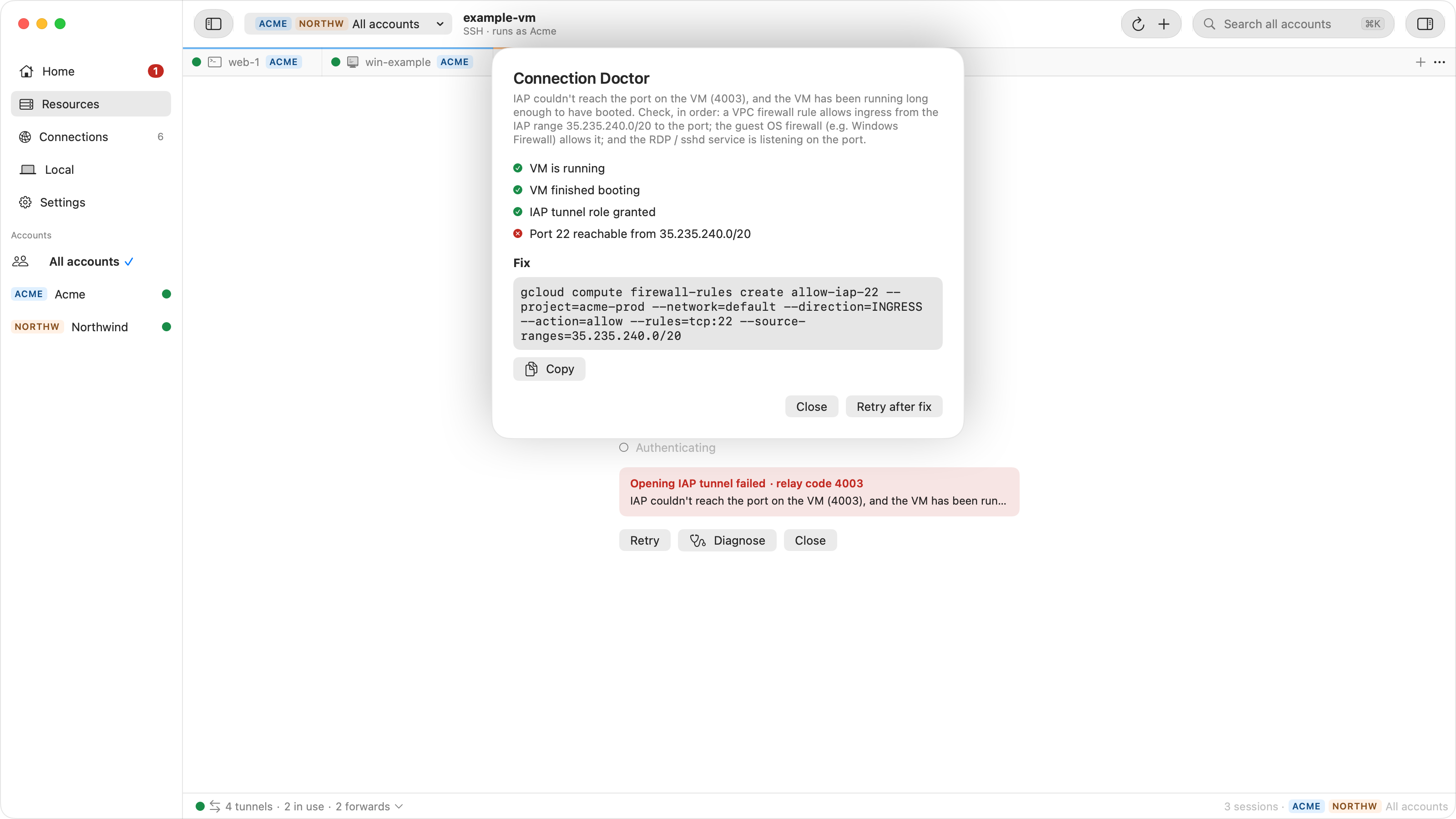
ssh-keysreturns 403, the tab reports Can't publish SSH key, namingcompute.. A fullinstances. setMetadata ssh-keysvalue is reported with its size. - Connection Doctor. A failed tab has a Diagnose button. It marks
VM is running, VM finished booting, IAP tunnel role granted and
Port 22 reachable from 35.235.240.0/20 as passed, failed or unknown, and, for a
refused metadata write, SSH key published (instance metadata). Where one command
fixes the cause (the tunnel role,
roles/, the firewall rule or starting the VM) it shows that command with Copy, filled in with your project, VM, network and account, and Retry after fix.compute. instanceAdmin. v1 - Show SSH Keys lists your OS Login keys and the instance's and project's
ssh-keys, marks your own key, and says whether OS Login applies, which level decided it, and whetherblock-project-ssh-keysis set. - Show Serial Port Output opens a read-only view of COM1, COM3 or COM4, with Pause
and Copy. It needs
compute., whichinstances. getSerialPortOutput roles/compute.viewerincludes. It is output only: to type into the serial console, use the Cloud Console.
For a UFW or sshd problem, Connection Doctor reports the symptom IAP sees: Port 22 reachable from 35.235.240.0/20 fails, with the firewall rule as the suggested fix. If the rule already exists, the cause is inside the guest, and the serial output and serial console above are the next step.
Questions
Why does Google Cloud say I do not have sufficient permissions to SSH into this instance?
Your account lacks an IAM role the VM's login method needs. On a VM with OS Login you need roles/compute.osLogin or roles/compute.osAdminLogin, plus roles/iam.serviceAccountUser on the VM's service account if it has one, and roles/compute.osLoginExternalUser if you are from another organization. Without OS Login you need a role that can write the instance's SSH key metadata, such as roles/compute.instanceAdmin.v1. Through IAP you also need roles/iap.tunnelResourceAccessor.
How do I fix Permission denied (publickey) on a GCP VM?
Find out whether the VM uses OS Login (enable-oslogin=TRUE in instance or project metadata). With OS Login, the key must be in your OS Login profile and you need roles/compute.osLogin or roles/compute.osAdminLogin; keys in metadata are ignored. Without OS Login, the key must be in the instance or project ssh-keys metadata for the username you log in as. If both are right, check from the serial console that the guest agent and sshd run, the boot disk is not full, and the .ssh permissions are 0700 and 0600.
How do I get back into a GCP VM after enabling UFW?
SSH cannot reach the VM while UFW blocks port 22, so use the interactive serial console: set serial-port-enable=TRUE in the instance metadata, connect from the VM's Details page with Connect to serial console, log in as a local user with a password, and run sudo ufw allow 22/tcp. Turn the serial console off again afterwards.
Why does SSH to a GCP VM ask for a password?
Either OpenSSH is asking for the passphrase of your private key, such as gcloud's ~/.ssh/google_compute_engine, or the VM refused your key and its SSH server offers password logins. Compute Engine's Linux SSH access is key-based, so fix why the key was refused instead of looking for a password. For Windows VMs, Google documents the prompt as a sign that the user does not exist on the VM, an outdated gcloud CLI, or SSH not enabled.
See which check failed. Ostgate is a native macOS app for SSH, RDP and TCP tunnels to Compute Engine through Identity-Aware Proxy. It publishes your key the way the VM expects and names the missing role or firewall rule when a connection fails.