SFTP to a GCP VM from a Mac, no external IP
A Compute Engine VM without an external IP has no address your Mac can reach on
port 22, so an SFTP client pointed at it times out. Identity-Aware Proxy carries the
connection instead: open an IAP tunnel to port 22, then point sftp or a
graphical SFTP client such as FileZilla or Cyberduck at the local end of the tunnel. This
guide covers the Cloud Console upload button, the tunnel with gcloud, the
usernames and keys a VM accepts, and the errors SFTP clients show when one of them is
wrong.
By Ostgate · Updated
Why port 22 is not reachable
SFTP is a subsystem of SSH: the client opens an SSH connection to port 22 and asks the
server to start sftp-server inside it. A VM with only an internal IP address
accepts that connection from inside its VPC network, not from your Mac. IAP TCP forwarding
relays it: your client talks to Google over HTTPS, and IAP connects to the VM's port 22
from the range 35.235.240.0/20. That needs two things, set once by an
administrator (details in IAP TCP forwarding:
firewall rule and IAM):
gcloud compute firewall-rules create allow-iap-ssh \
    --project=acme-prod --network=default \
    --direction=INGRESS --action=allow \
    --rules=tcp:22 \
    --source-ranges=35.235.240.0/20

gcloud projects add-iam-policy-binding acme-prod \
    --member=user:alice@example.com \
    --role=roles/iap.tunnelResourceAccessor
SFTP needs nothing beyond what SSH needs: no extra port and no FTP server on the VM.
Upload from the Cloud Console
For a single file, SSH next to the instance in Compute Engine › VM instances
opens SSH-in-browser. Google's documentation says that for an instance with only an
internal IP address, SSH-in-browser uses IAP TCP forwarding, so the firewall rule above
applies. Its toolbar has an upload button: Upload Files puts the chosen files in
your home directory, /home/USER. The download button asks for the file's path
relative to that directory. Google notes that transfers through SSH-in-browser might be
slow for large files and suggests gcloud compute scp instead; the scp and rsync guide covers that route.
SFTP through gcloud start-iap-tunnel
With the Google Cloud CLI installed, gcloud compute start-iap-tunnel listens
on a local port and forwards every connection to the VM through IAP:
gcloud compute start-iap-tunnel example-vm 22 \
    --local-host-port=localhost:2222 \
    --zone=europe-west1-b --project=acme-prod
Leave it running. In a second Terminal window, OpenSSH's sftp takes the port
with a capital -P:
sftp -P 2222 -i ~/.ssh/google_compute_engine alice_example_com@localhost
A graphical client takes the same values: protocol SFTP, host localhost, port
2222, your VM username, and your private key file. The client connects to your
Mac; the tunnel carries the bytes to example-vm. When the tunnel process ends,
the client's next connection is refused.
An ssh_config alias for sftp
OpenSSH's sftp reads ~/.ssh/config, so a ProxyCommand
can start the tunnel for each connection, with no port to keep open:
Host example-vm
    User alice_example_com
    IdentityFile ~/.ssh/google_compute_engine
    ProxyCommand gcloud compute start-iap-tunnel %h 22 --listen-on-stdin --zone=europe-west1-b --project=acme-prod
%h expands to the host name you type, so the Host line must be
the instance name. --listen-on-stdin makes gcloud carry the connection on its
standard input and output instead of a local port. Then:
sftp example-vm
The same alias serves scp, rsync and ssh. Graphical
clients that do not read ~/.ssh/config need the local-port tunnel above.
Usernames and keys
Which username and key the VM accepts depends on how it manages SSH access:
- OS Login. The username belongs to your Google account. Unless your organization
set one, Compute Engine forms it as
USERNAME_DOMAIN_SUFFIX, soalice@example.combecomesalice_example_com. Your public key must be in your OS Login profile;gcloud compute os-login describe-profilelists both. - Metadata SSH keys. The username is the one the key was added for in the project's
or instance's SSH keys metadata.
gcloud compute sshadds one for you on first use and stores the private key as~/.ssh/google_compute_engine.
A client that offers no key, the wrong key, or the right key for another user is refused
at authentication. With OpenSSH that reads Permission denied (publickey).
Clients built on PuTTY's SSH code report the same refusal as No supported
authentication methods available (server sent: publickey): the VM accepts only
public keys, and the client had none it would take.
A second failure appears only in SFTP. The OpenSSH FAQ (2.9, "sftp/scp fails at connection,
but ssh is OK") explains that shell initialization files such as .bashrc or
.profile that produce output for non-interactive sessions confuse the sftp
client. The client reads the first bytes of that text as the length of an SFTP packet:
OpenSSH's sftp then stops with Received message too long and a
large number, and WinSCP's documentation lists its Received too large (… B) SFTP
packet error as typically caused by a message printed from a profile or logon
script. The FAQ's test is ssh example-vm /usr/bin/true: if it prints anything,
move that line to an interactive-only file or guard it.
How Ostgate does it
Ostgate is a native macOS app that opens IAP tunnels itself, with no gcloud on
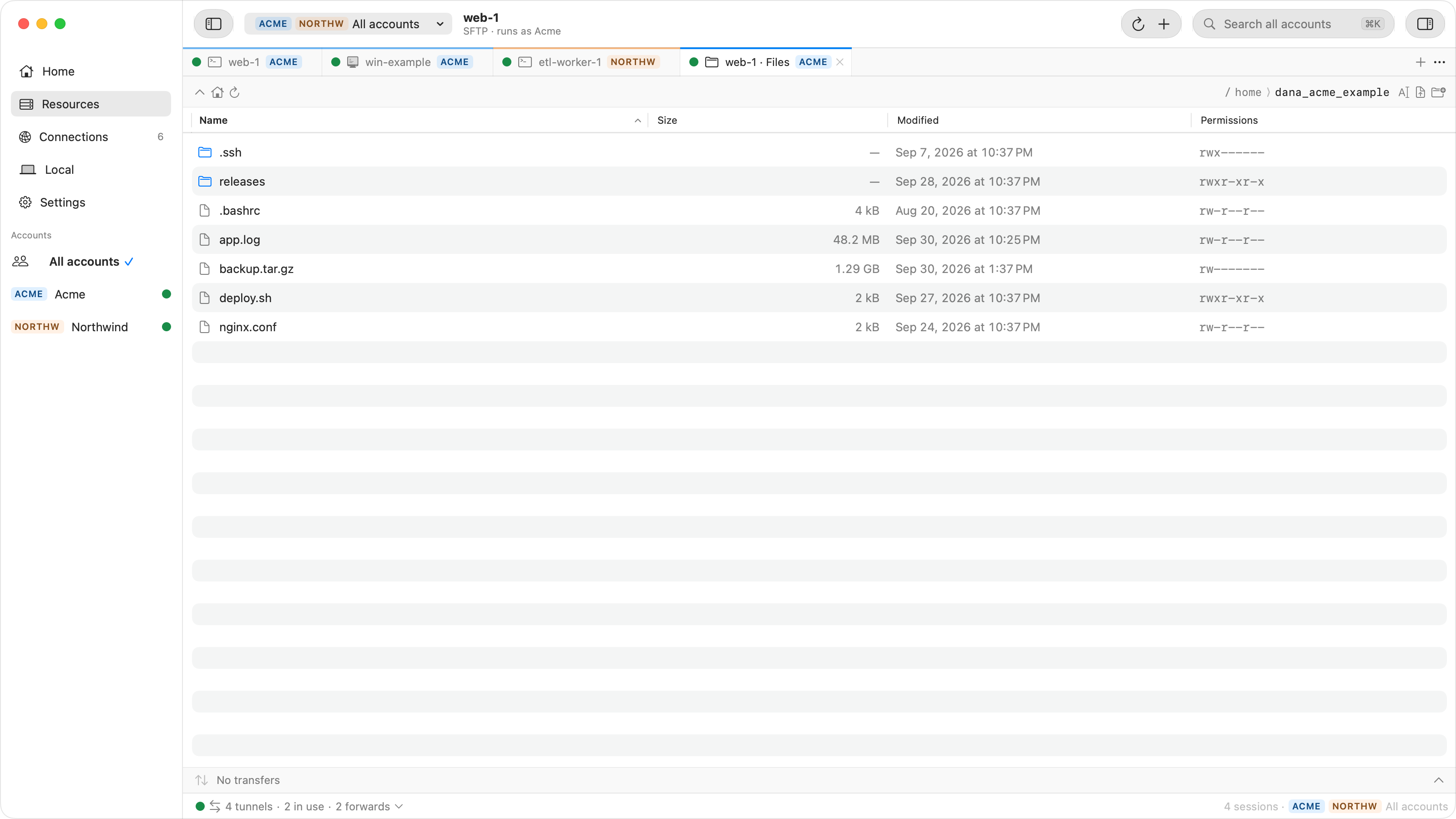
the Mac. Its SFTP browser runs inside the app:
- Browse Files on a Linux instance, or in an SSH tab's context menu, opens an "example-vm · Files" tab over IAP. It signs in the way the SSH tab does: Ostgate publishes its key through OS Login or instance metadata, or uses the username and password or private key you set for that instance.
- In the tab: New Folder, Rename, Delete, Upload… and Download…. Drag files and folders in from Finder, and files out to Finder. Transfers show progress and Cancel, and a cancelled or failed transfer leaves no half-written file.
- An uploaded folder that already exists on the VM is merged: files only on the VM stay, and files with the same name are replaced after one confirmation for the whole upload.
- A folder or several items download as one ZIP built on the Mac. A folder, or five or more
items, is packed on the VM with
tarand streamed compressed over the same connection, with nothing written to the VM's disk. On a login restricted to SFTP, or a VM without GNUtar, Ostgate copies the files over SFTP instead and the transfer row says why, for example "via SFTP: this login allows SFTP only". - A tab that loses its connection shows Connection lost with Reconnect, which reopens the same folder. A file dropped onto an SSH terminal uploads to your home folder.
To keep using another SFTP client, Tunnel to Port… on the instance with the SSH preset
gives a local port on 127.0.0.1, like start-iap-tunnel. Set
Access under Options to My processes, since the default for SSH,
Ostgate only, refuses other apps. The client then signs in with its own username and
key.
When SFTP fails
| Error | Cause | Fix |
|---|---|---|
| Connection timed out to the VM's internal IP | The VM has no external IP; your Mac cannot route to its internal one. | Connect through an IAP tunnel, as above. |
Connection refused on localhost:2222 |
The start-iap-tunnel process is not running. |
Start it again and keep its window open. |
Tunnel closes with 4003 |
No firewall rule from 35.235.240.0/20 on tcp:22, or sshd is not
listening. |
Add the rule above; check the VM is running. |
Tunnel closes with 4033 |
The account lacks roles/iap.. |
Grant the role on the project or instance. |
| No supported authentication methods available (server sent: publickey) | The client offered no key the VM accepts for that user. | Set the private key file and the right username. |
| Permission denied (publickey) | Wrong username, or a key not in your OS Login profile or SSH keys metadata. | Check both with gcloud compute os-login describe-profile. |
| Received too large (… B) SFTP packet, or Received message too long | A shell startup file prints text in non-interactive sessions. | Run ssh example-vm /usr/bin/true; remove or guard what it
prints. |
Questions
Can I use FileZilla or another SFTP client with a VM that has no external IP?
Yes, through a local IAP tunnel. Run gcloud compute start-iap-tunnel example-vm 22 --local-host-port=localhost:2222 and connect the client to localhost, port 2222, protocol SFTP, with your VM username and private key. The tunnel must keep running while the client is connected.
Why does my SFTP client report "Received too large SFTP packet"?
A shell startup file on the VM prints text in non-interactive sessions, and the client reads that text as the start of an SFTP packet. If ssh example-vm /usr/bin/true prints anything, move or guard the line in .bashrc or .profile that produces it.
Which username do I use for SFTP to a Compute Engine VM?
With OS Login, the username in your OS Login profile, which Compute Engine forms from your email unless your administrator set another, for example alice_example_com; gcloud compute os-login describe-profile shows it. With metadata SSH keys, the username the key was added for.
Can I upload a file from the Cloud Console instead?
Yes. The SSH-in-browser window has an upload button that puts files in your home directory on the VM, and a download button that asks for a file path. For a VM without an external IP it connects through IAP TCP forwarding, so it needs the same firewall rule. Google notes it can be slow for large files.
Drag files to a private VM. Ostgate runs on Apple Silicon Macs with macOS 26.3 or later, with a 7-day trial and no sign-up. See SSH and files in the docs.