Guide
RDP errors on Compute Engine Windows VMs
Remote Desktop to a Windows VM on Google Cloud fails in a handful of ways, and
the client's message rarely says which. This guide goes through the errors people actually
hit, from error code 0x4 to "no Remote Desktop License Servers available", in
the order worth checking, with the fix for each and how to look inside the VM when RDP
itself is the problem.
Updated
The client cannot connect at all (0x204, timed out)
On a Mac, Windows App reports this as error code 0x204: it could not reach a
Remote Desktop server where you pointed it. Check, in this order:
- The VM has finished booting. A new or just-started Windows VM needs a few minutes before Remote Desktop answers. The serial port output shows how far it got.
- The firewall admits IAP on tcp:3389. The VPC network needs an ingress rule from
35.235.240.0/20to port 3389 on the VM's network. Do not open 3389 to0.0.0.0/0instead; see the firewall rule and IAM checklist. - You hold the IAP tunnel role,
roles/iap., on the project or the VM. Without it the tunnel closes withtunnelResourceAccessor 4033. - The tunnel is running and the client uses its port. With the manual route, the
RDP client must point at
localhostand the portstart-iap-tunnelprinted, not at the VM's address.
gcloud compute start-iap-tunnel win-01 3389 \
    --local-host-port=localhost:13389 \
    --zone=europe-west1-b --project=acme-prod
If the tunnel itself fails, its close code tells you which of the above it is: IAP tunnel errors lists them.
"The user name or password is incorrect"
A Compute Engine Windows VM has no password until you set one. Generate it in the Cloud Console (Set Windows password on the VM's details page) or with:
gcloud compute reset-windows-password win-01 \
    --user=dana --zone=europe-west1-b --project=acme-prod
- Use the Windows user name you chose, not your Google account. The console suggests a name derived from your Google account; whatever it shows is the name to use.
- Every reset replaces the previous password. If a colleague reset it after you, your copy no longer works.
- Give the guest agent a minute. It creates the account after you ask for the password; signing in straight away can fail once.
- Paste, do not retype. Generated passwords mix characters such as
0andOthat are easy to misread.
A VM joined to Active Directory uses domain accounts instead: sign in as
DOMAIN\user.
"No Remote Desktop License Servers available"
The full message is The remote session was disconnected because there are no Remote Desktop License Servers available to provide a license. It appears on a VM with the Remote Desktop Session Host role once the role's licensing grace period has ended and no license server provides client access licences. Rebooting does not help.
- Sign in to an administrative session. Every Windows Server keeps two
administrative Remote Desktop sessions that need no licence. On Windows that is
mstsc /admin; in Ostgate, set Session type to RDS admin session. - Then fix licensing for good: point the Session Host at a license server with Remote Desktop CALs, or remove the Remote Desktop Session Host role if two concurrent administrators are enough.
Error code 0x4, "An internal error has occurred"
This is the client's generic message for a session that the server ended during setup, so the cause is on the VM. The ones seen most often on Compute Engine:
- A session stuck at another size. Someone's session is still open at an unusual resolution. Turning off the client's option to update the session resolution when the window resizes, or connecting at a fixed resolution, gets you in.
- The server cannot create its RDP certificate. The System event log shows
Event ID 1057, The Terminal Server has failed to create a new self signed
certificate, usually because of the permissions on the
MachineKeysfolder. Fixing them and restarting the Remote Desktop Services service clears it. - Port 3389 open to the internet. Constant sign-in attempts from scanners use up
what the server will accept. Remove any rule that admits
0.0.0.0/0on 3389 and connect through IAP only.
"The remote computer requires Network Level Authentication"
The VM insists on Network Level Authentication (NLA) and the client connected with it off. Turn NLA on in the client and connect again. NLA checks your credentials before the desktop starts, so a wrong password now fails fast instead of showing the Windows sign-in screen.
Looking inside the VM when RDP is the problem
Two tools work without Remote Desktop:
- Serial port output shows boot and guest-agent messages, so you can see whether
Windows finished starting and whether the password request reached the agent:
gcloud compute instances get-serial-port-output win-01 \ --zone=europe-west1-b --project=acme-prod - The interactive serial console, if it is enabled for the VM, gives you the Windows Special Administration Console, where you can list and restart services.
How Ostgate helps
Ostgate is a native macOS app with Remote Desktop built in: it opens the IAP tunnel itself
and draws the Windows desktop in a tab, with no gcloud or separate RDP
client.
- Set Windows Password… on a running instance creates or resets the account and can keep the password in the Keychain, so the next connection signs in by itself.
- Connection Doctor names the missing IAM role or firewall rule when the tunnel fails, instead of a bare timeout.
- Session type › RDS admin session, Network Level Authentication, Restricted Admin mode, resolution and colour depth are connection settings, set per instance, zone, project or globally.
- The desktop follows the window size by default, or uses a fixed resolution when a session misbehaves at another size.
- Serial port output for any instance is one menu item away.
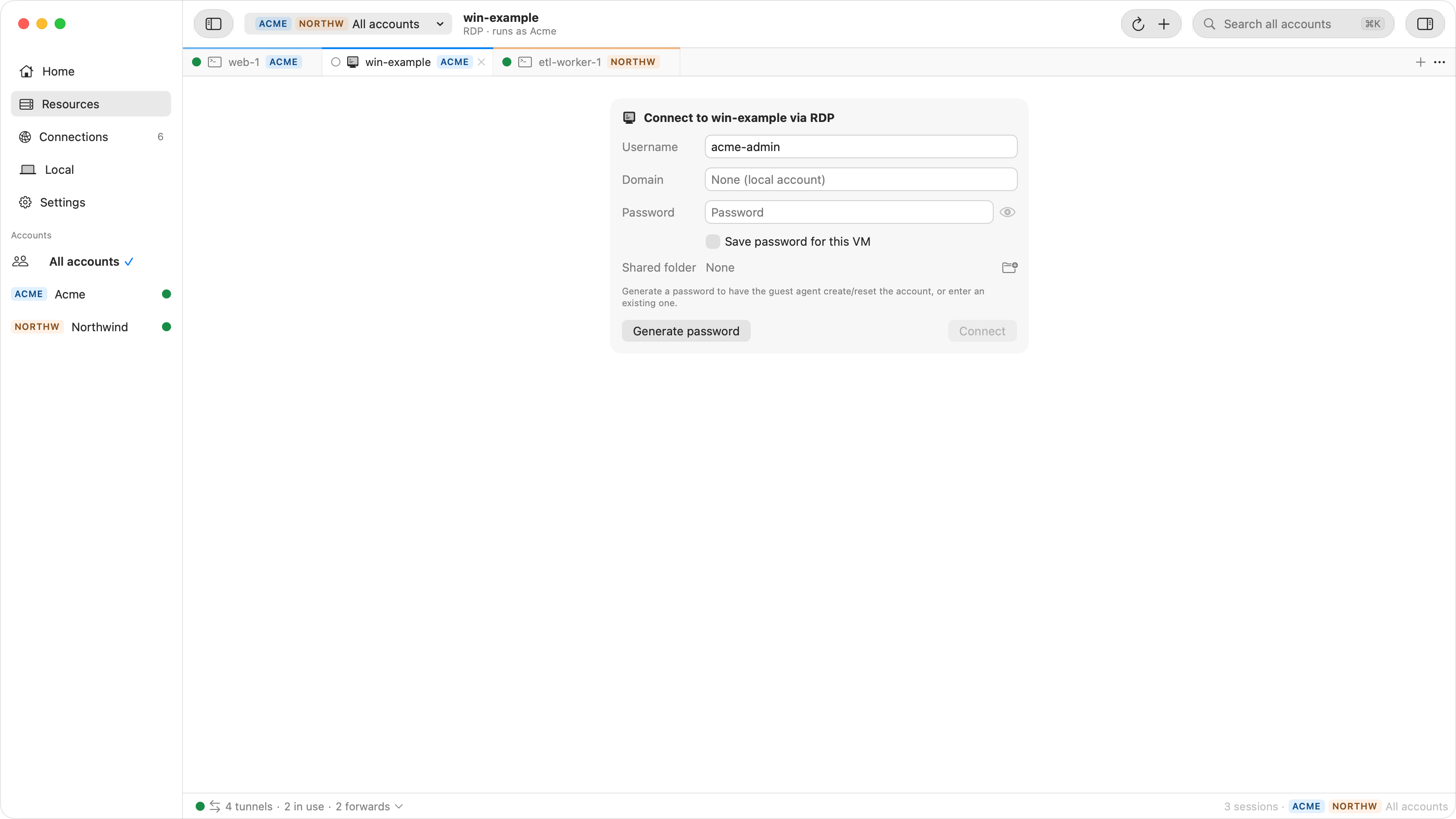
The full walkthrough, from firewall rule to first connection, is in RDP to a Windows VM on Google Cloud from a Mac.
Questions
Should I open port 3389 to 0.0.0.0/0 to fix RDP?
No. An RDP port open to the internet is scanned and attacked within hours, and the failed sign-ins can themselves break sessions. Allow only 35.235.240.0/20 and connect through Identity-Aware Proxy.
How do I get into a Windows VM when RDP is broken?
Read its serial port output to see where boot or setup stopped, and use the interactive serial console if it is enabled for the VM. Both work without RDP.
Is my Google account name the Windows user name?
No. The Windows user is the one you chose when you set the Windows password. The Cloud Console suggests a name based on your Google account, which you can change.
Can I stop the license-server error for good without buying licences?
Only by removing the Remote Desktop Session Host role, which leaves the two administrative sessions every Windows Server includes. Keeping the role past its grace period needs a license server with Remote Desktop client access licences.
Remote Desktop without gcloud. Ostgate runs on Apple Silicon Macs with macOS 26.3 or later, with a 7-day trial and no sign-up. Setup is in the Remote Desktop docs.