Guide
RDP to a Windows VM on Google Cloud from a Mac
A Windows Server instance on Compute Engine with no external IP is still reachable
over Remote Desktop from macOS, through Identity-Aware Proxy (IAP). You need three things:
a Windows account with a password, a firewall rule that lets IAP reach port 3389, and a
client on the Mac that speaks RDP through the tunnel. This guide covers the manual route
with gcloud and Windows App, and the shorter one in Ostgate.
Updated
How RDP through IAP works
IAP TCP forwarding carries a TCP stream from your Mac, over an authenticated HTTPS
WebSocket to Google, to a port on the VM's internal address. Google checks your own IAM
permissions for every tunnel, and the connection to the VM comes from the fixed range
35.235.240.0/20. Your RDP client talks to a port on 127.0.0.1, and
the tunnel delivers those bytes to port 3389 on the VM. The VM needs no public IP, no VPN
and no bastion host.
1. Allow IAP on tcp:3389
On the VPC network the VM's interface is attached to, add an ingress rule from
35.235.240.0/20 to TCP port 3389. In the Cloud Console this is
VPC network › Firewall › Create firewall rule. An administrator with the command line
can run:
gcloud compute firewall-rules create allow-iap-rdp \
    --project=acme-prod --network=default \
    --direction=INGRESS --action=allow \
    --rules=tcp:3389 --source-ranges=35.235.240.0/20
Then grant each person roles/iap. (IAP-secured Tunnel
User) on the project or on the instance. Without it the tunnel is refused before it ever
reaches the VM:
gcloud projects add-iam-policy-binding acme-prod \
    --member=user:you@example.com --role=roles/iap.tunnelResourceAccessor
2. Get a Windows password
Public Windows images have no password you know. Compute Engine creates or resets a local
account for you: the client writes a public key to the instance's windows-keys
metadata, the guest agent on the VM creates the account, and the new password comes back
encrypted over the serial port. Setting a password needs
roles/compute.instanceAdmin.v1 on the instance, and the VM must be running.
- Cloud Console: open the VM's details page and click Set Windows password, confirm the username, and copy the password it shows.
- gcloud: the same flow from a terminal.
gcloud compute reset-windows-password win-01 \
    --zone=europe-west1-b --project=acme-prod --user=northwind
Running it again for the same user resets the password, so any saved copy of the old one stops working. On a VM that has only just been created, give the guest agent a minute or two to finish booting before you try.
3. The manual route: gcloud plus Windows App
Start a tunnel from the VM's port 3389 to a free port on your Mac and leave the command running:
gcloud compute start-iap-tunnel win-01 3389 \
    --local-host-port=localhost:33389 \
    --zone=europe-west1-b --project=acme-prod
Then, in Microsoft's Windows App (the successor to Microsoft Remote Desktop on the Mac App
Store), add a PC with the address localhost:33389, and sign in with the
username and password from step 2. This works, with some costs:
- A terminal stays occupied per desktop, and the tunnel ends when you close it or the Mac sleeps.
- You pick and remember local ports by hand, one per VM.
- Any process on your Mac can connect to that local port while the tunnel runs.
- When something fails, the RDP client only says it could not connect; you work out whether it was IAM, the firewall or a VM that is still booting.
4. The same thing in Ostgate
Ostgate is a native macOS app that does the tunnel, the password and the desktop in one
window. It signs in with your Google account in your own browser and needs no
gcloud and no separate RDP client. The firewall rule and IAM role from step 1
still apply, because Google enforces them.
- Pin the project in Resources, and find the instance, or press ⌘K and type its name.
- Double-click the instance, or choose Connect via RDP. With saved credentials, or credentials kept in Google Secret Manager, the desktop opens without asking; otherwise the tab shows a credential form.
- If you have no Windows credentials yet, enter a username in the form and click
Generate password. It runs the same
windows-keysflow: the guest agent creates or resets the account, and the password fills in. Tick Save password for this VM to keep it in the macOS Keychain once the desktop appears, then click Connect. Set Windows Password… on a running instance does the same without opening a tab.
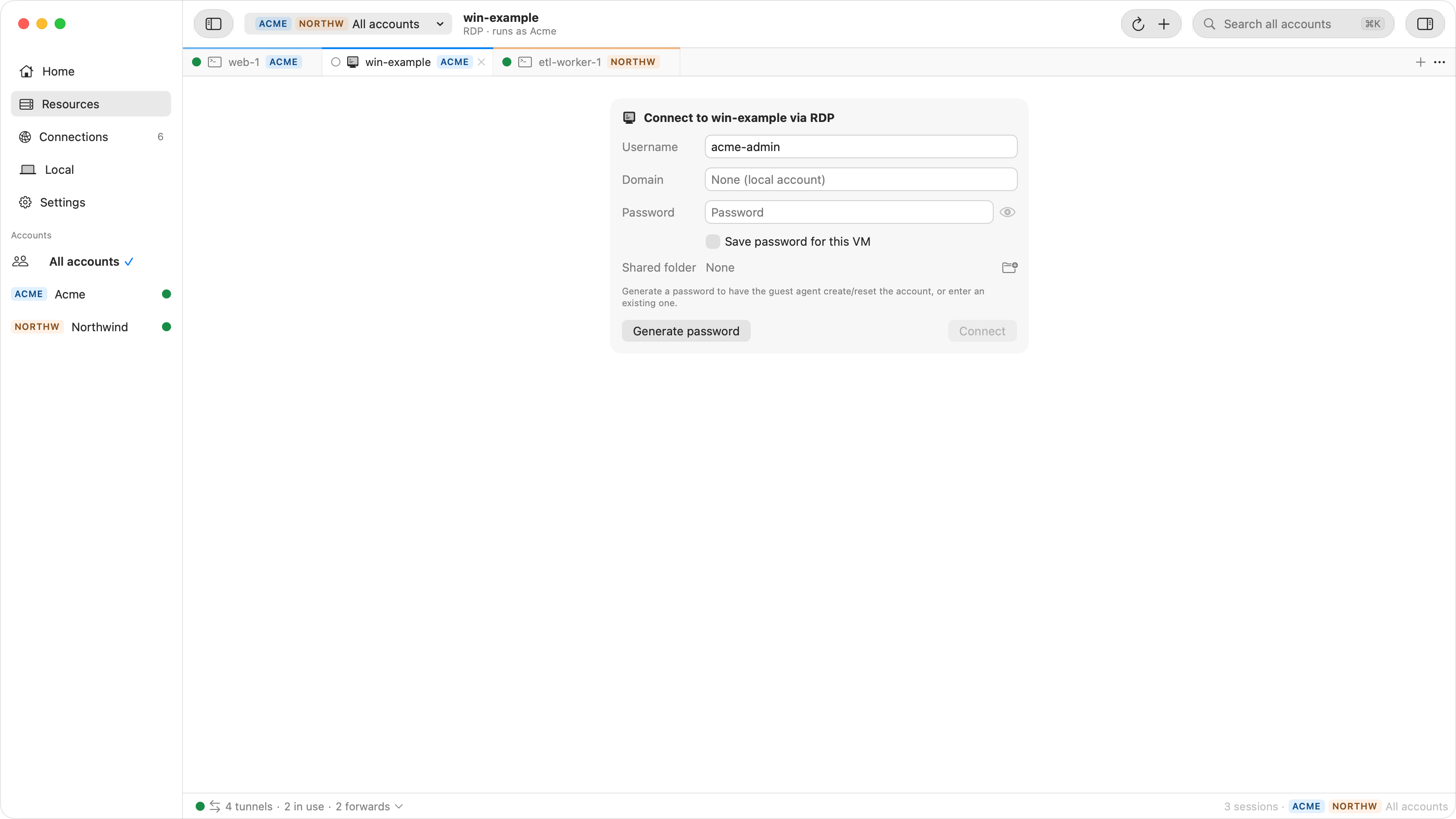
The desktop opens as a tab next to your SSH terminals, over a tunnel that only Ostgate itself may use. If it fails, the tab shows which stage failed, and Diagnose opens Connection Doctor, which names the cause (a missing IAP role, no route to port 3389, a VM still starting up) and gives you a command to copy.
What the embedded RDP does
- Full colour through the graphics pipeline. Desktops render in 32-bit colour through the RDP graphics pipeline where the server offers it.
- Clipboard. Text syncs both ways between the Mac and Windows.
- Type Clipboard Text (⌥⌘V) types the Mac clipboard as keystrokes, for the places clipboard sync cannot reach: the login screen, a console, an elevated administrator PowerShell. It asks first and shows a progress bar you can cancel.
- Shared folder. Pick a Mac folder in the credential form and it appears in Windows
as a drive under
\\tsclient, for copying files either way. - Audio. Sound plays on your Mac by default; it can play on the VM instead, or be off.
- Display. The desktop follows the window size by default, or matches your Mac's screen, or uses a fixed resolution. Colour depth is 16, 24 or 32-bit.
- Session options. RDS admin session, Restricted Admin mode and Network Level Authentication are settings, alongside the RDP port and connect timeout.
- Reconnect and Sign Out. Reconnect rebuilds a session in the same tab; Sign Out logs the Windows session off after you confirm.
All of these are connection settings that you set once for an account, a project, a zone or a single VM, and the narrower setting wins.
Common failures
| Symptom | Usual cause |
|---|---|
| Tunnel refused with a permission error | No roles/iap. on the instance or
project. |
| Tunnel opens, RDP times out | No firewall rule from 35.235.240.0/20 on tcp:3389, or the rule is
on a different network. |
| Connection drops right after starting the VM | Windows is still booting. Wait a minute and reconnect. |
| Sign-in rejected | The password was reset since you copied it, or the account was not yet created. Set a new password. |
| The VM requires NLA | Turn Network Level Authentication on in the client. |
Error codes such as 0x4, a rejected password or "no Remote Desktop License
Servers available" are covered one by one in RDP
errors on Compute Engine Windows VMs.
Questions
Does the Windows VM need a public IP for RDP?
No. Identity-Aware Proxy connects to the VM's internal address from
35.235.240.0/20, so the VM only needs a firewall rule allowing that range on
tcp:3389.
Why is my generated Windows password rejected?
The account may not have been created yet (the guest agent can take a minute), or the password was reset again since you copied it. Generate a new one and connect with that.
Does Ostgate need gcloud or Windows App?
No. Ostgate signs in with your Google account, opens the IAP tunnel itself and renders
the Windows desktop in its own tab. gcloud and Windows App are only needed
for the manual route.
Can I copy files to the Windows VM from my Mac?
Yes. Pick a shared folder in Ostgate's credential form and it appears in Windows as a
drive under \\tsclient. Text copied on either side is synced through the
clipboard.
Try it on your own Windows VMs. Ostgate runs on Apple Silicon Macs with macOS 26.3 or later, with a 7-day trial and no sign-up. Setup is in the Remote Desktop docs.