Guide
Connect to a Cloud SQL private IP from a Mac
A Cloud SQL instance with only a private IP is the right posture for a
production database, and it means psql on your laptop cannot reach it. This
guide explains why, what the Cloud SQL Auth Proxy does and does not change, and how to
reach the database through a VM in the same VPC over Identity-Aware Proxy, by hand or with
Ostgate.
Updated
Why the private IP is unreachable from your laptop
A private-IP Cloud SQL instance gets an address such as 10.50.0.7 from a range
reserved for private services access. Google places the instance in a VPC it manages and
connects that VPC to yours with VPC Network Peering. The address is routable from resources
inside your VPC, and from networks joined to it by Cloud VPN or Interconnect. It is not
routable from the internet, so a laptop on home or office Wi-Fi has no path to it at all.
Connection attempts simply time out.
Peering is also not transitive. A second VPC peered with yours cannot reach the database through your VPC, which is why "just run it from the other project's VM" often fails too.
The Cloud SQL Auth Proxy still needs a route
The Cloud SQL Auth Proxy is often the first suggestion. It authorizes connections with IAM
and wraps them in TLS, and for a private-IP instance you run it with
--private-ip:
cloud-sql-proxy --private-ip --port 5432 \
    acme-prod:europe-west1:orders-db
That command only works where the proxy can open a TCP connection to the private
address. On a laptop without a VPN into the VPC it fails exactly as psql does.
The proxy solves authorization and encryption, not reachability. You still need something
inside the network.
The working pattern: a VM in the VPC as a jump host
Any VM on the database's VPC can reach the private IP. If you can reach that VM, you can forward a local port through it. With IAP TCP forwarding, the VM needs no external IP either: Google carries your connection to the VM's internal address, after checking your own IAM permissions.
- Pick a VM with a network interface on the Cloud SQL instance's VPC. An existing
one is fine; a small
e2-microworks if you have none. - Let IAP reach it over SSH: an ingress firewall rule from
35.235.240.0/20on tcp:22, androles/iap.for each person.tunnelResourceAccessor - Make sure you can sign in to the VM over SSH, through OS Login or a metadata key.
gcloud compute firewall-rules create allow-iap-ssh \
    --project=acme-prod --network=default \
    --direction=INGRESS --action=allow \
    --rules=tcp:22 --source-ranges=35.235.240.0/20
Find the database's private IP in the Cloud Console on the instance's Overview page, or with the command line:
gcloud sql instances describe orders-db --project=acme-prod \
    --format="value(ipAddresses)"
The manual route with gcloud
Open an SSH session to the VM through IAP that does nothing but forward a local port to the database, and leave it running:
gcloud compute ssh bastion-01 --tunnel-through-iap \
    --zone=europe-west1-b --project=acme-prod \
    -- -N -L 5432:10.50.0.7:5432
Then, in another terminal:
psql "host=127.0.0.1 port=5432 user=postgres dbname=orders sslmode=require"
The same forward works for MySQL on 3306 and SQL Server on 1433. It holds a terminal open per database, stops when the Mac sleeps or the network drops, and while it runs any process on your Mac can use the local port.
How Ostgate does it
Ostgate is a native macOS app that builds this path for you. It signs in with your Google
account in your own browser and uses no gcloud and no Auth Proxy binary.
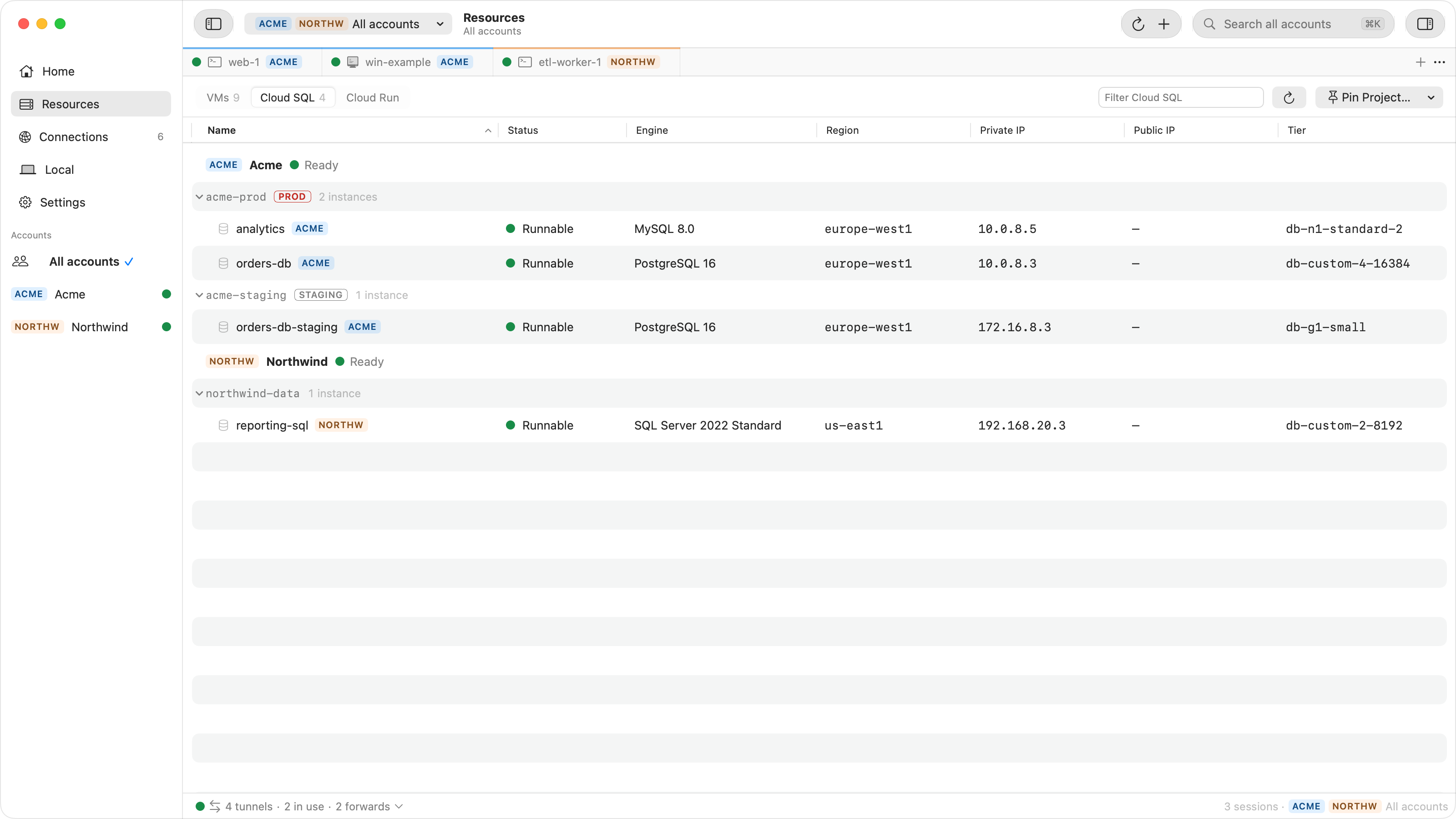
- See your databases. The Cloud SQL tab in Resources lists each pinned
project's instances with engine and version, region, state, private and public IP, and
tier. Listing needs the Cloud SQL Admin API enabled and
roles/cloudsql.viewer. - Open Tunnel… on an instance, or double-click it. The target is fixed: the private IP on the engine's port (5432, 3306 or 1433).
- Choose the VM under Via bastion. Ostgate starts with the VM you used last, or a running VM on the database's VPC, or one in its project, and you can pick any other running VM of your pinned projects.
- Open it. Ostgate starts a forward from
127.0.0.1through that VM to the private IP, over one SSH session carried by IAP. The local port stays the same from one run to the next, and Copy Command gives you thepsql,mysqlorsqlcmdline to paste.
The tunnel opens with My processes access, so psql, TablePlus, DBeaver or your IDE, running as your macOS user, can connect, and other users' processes on the Mac cannot. It is saved as a forward profile under Connections › Forwards, so the next time you choose Open Tunnel… on the same database Ostgate offers to start it again instead of creating a duplicate.
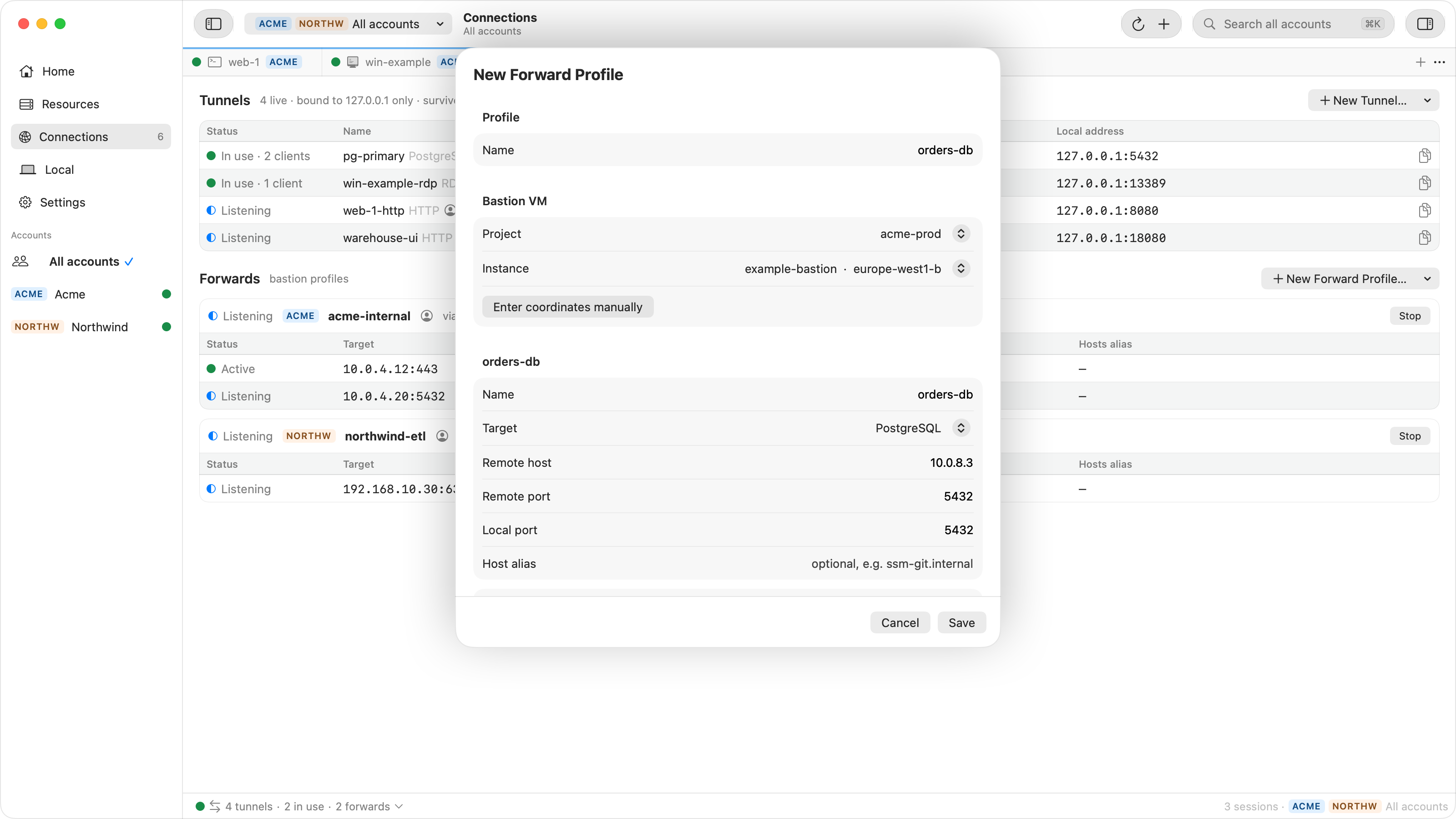
For more than one port through the same VM, say the database and a Memorystore instance
beside it, create a forward profile yourself in Connections › Forwards › New Forward
Profile…. It forwards several ports at once over one SSH session, to any address the VM
can reach, and can manage /etc/hosts aliases while it runs.
Ostgate only carries the TCP connection. Your SQL client signs in to the database with its own user and password, and Ostgate never asks for, reads or stores a database credential.
What it does not do
- Instances with only a public IP are not supported: Open Tunnel… is disabled for them, with the reason.
- It does not speak the Cloud SQL Auth Proxy protocol. An instance that enforces the Cloud SQL connectors for every connection refuses a direct connection through a VM, whichever tool carries it.
- It needs a running VM that can reach the database and that you can SSH to. It does not create one for you.
Step-by-step settings for DBeaver, DataGrip and TablePlus, including SSL mode, are in DBeaver, DataGrip or TablePlus to a Cloud SQL private IP.
Checklist when it does not connect
| Symptom | Check |
|---|---|
| The SSH hop to the VM fails | Firewall from 35.235.240.0/20 on tcp:22, the IAP tunnel role, and
OS Login or metadata key access to the VM. |
| Forward opens, client times out | The VM is on a different VPC, or on one peered to the database's VPC rather than the one the instance uses. |
| Client connects, server refuses | The database user or password, or an SSL requirement: add
sslmode=require for PostgreSQL. |
| No instances listed in Ostgate | The Cloud SQL Admin API is off in that project, or the account lacks
roles/cloudsql.viewer. The project's row says which. |
Questions
Can I use the Cloud SQL Auth Proxy from my laptop for a private-IP instance?
Only if your laptop has a network route to the instance's VPC, through a VPN or Interconnect. The proxy adds IAM authorization and TLS; it does not create a route to a private address.
Does the jump host need a public IP?
No. Identity-Aware Proxy reaches the VM's internal address, so a VM without an external
IP works as long as the firewall allows 35.235.240.0/20 on tcp:22.
Does Ostgate handle my database password?
No. Ostgate only carries the TCP connection. Your SQL client signs in to the database with its own user and password, and Ostgate never asks for, reads or stores a database credential.
Does Ostgate connect to a Cloud SQL instance that only has a public IP?
No. Open Tunnel… is available only for instances with a private IP, and is disabled with the reason for a public-only instance.
Point your SQL client at 127.0.0.1. Ostgate runs on Apple Silicon Macs with macOS 26.3 or later, with a 7-day trial and no sign-up. Setup is in the tunnels and forwards docs.