Guide
DBeaver, DataGrip or TablePlus to a Cloud SQL private IP
A Cloud SQL instance with only a private IP has no route from your Mac, and
the SSH tunnel built into your database client cannot reach a VM without an external IP
either. The way in is a local port on 127.0.0.1, carried through a VM in the
same VPC over Identity-Aware Proxy. This guide sets that up and fills in the connection
fields for DBeaver, DataGrip and TablePlus, including SSL.
Updated
Why the client's own SSH tunnel does not work here
DBeaver, DataGrip and TablePlus can each tunnel a connection over SSH, but they open that SSH connection straight to a server's address. The VM that can reach your database has no external IP, so there is nothing for them to connect to. Identity-Aware Proxy is what reaches the VM, and none of these clients speaks it. So the tunnel runs outside the client, and the client connects to a local port as if the database were on your Mac.
Open a local port to the database
You need a running VM on the Cloud SQL instance's VPC, a firewall rule from
35.235.240.0/20 on tcp:22, roles/iap.,
and SSH access to that VM. The Cloud SQL private
IP guide explains each. With gcloud, forward a local port through the VM and leave it
running:
gcloud compute ssh example-bastion --tunnel-through-iap \
    --zone=europe-west1-b --project=acme-prod \
    -- -N -L 15432:10.50.0.7:5432
Here 10.50.0.7 is the instance's private IP and 15432 a free local port. A
local port other than 5432 avoids a clash with a PostgreSQL already running on the
Mac.
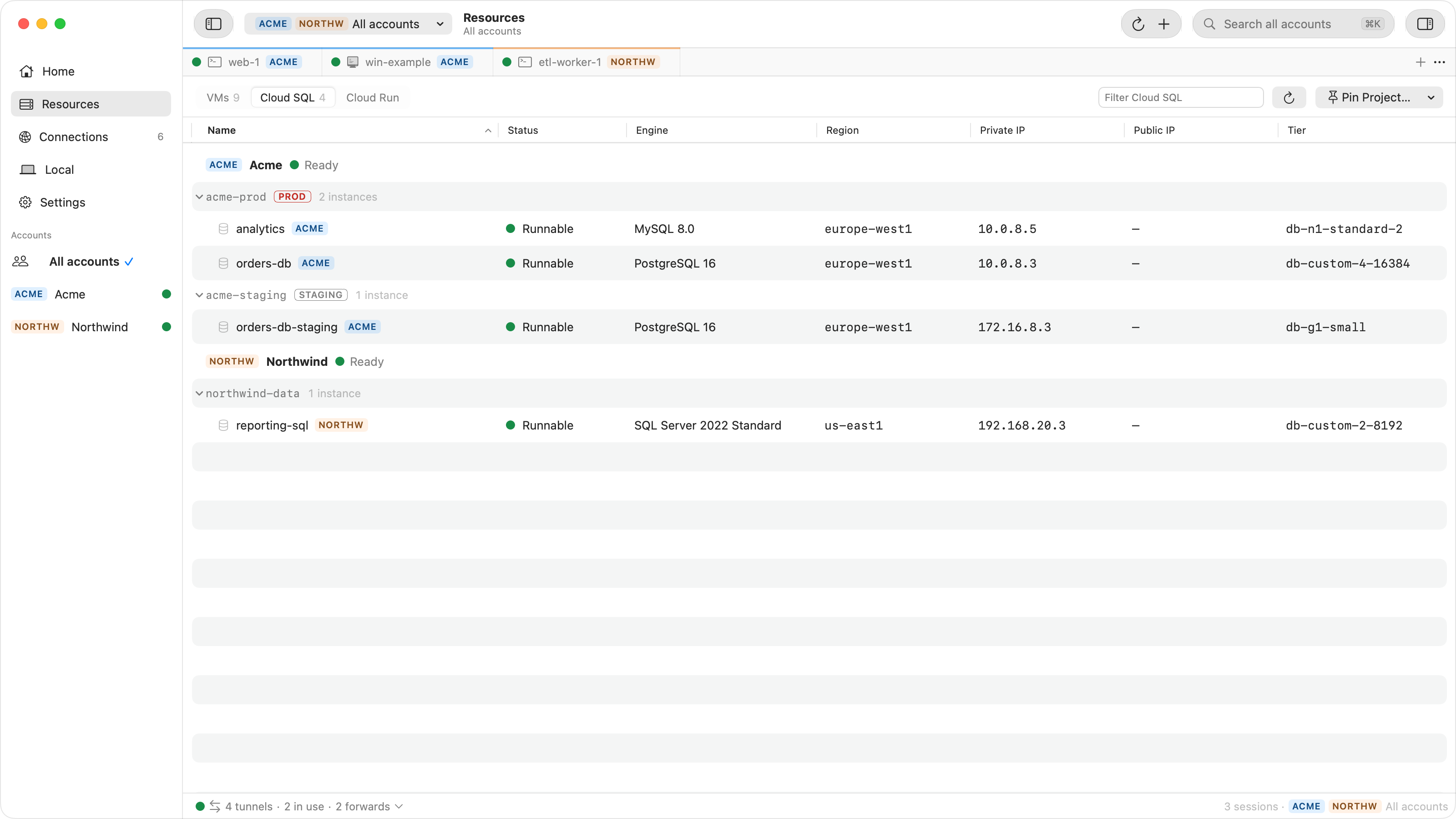
In Ostgate, choose Open Tunnel… on the instance in the Cloud SQL tab of
Resources and pick the VM under Via bastion. It opens the same forward without
gcloud, keeps the local port from one run to the next, and Copy Command gives the
matching psql, mysql or sqlcmd line.
The connection fields
Whatever the client, the values are the same. Only the host and port change from what you would use inside the VPC:
| Field | PostgreSQL | MySQL | SQL Server |
|---|---|---|---|
| Host | 127.0.0.1 | 127.0.0.1 | 127.0.0.1 |
| Port | The local port, e.g. 15432 | The local port, e.g. 13306 | The local port, e.g. 11433 |
| User and password | Your database user, as usual | Your database user, as usual | Your database login, as usual |
| SSL | Mode require | Mode REQUIRED | Encrypt, and trust the server certificate |
Use 127.0.0.1 rather than localhost: Ostgate's tunnels listen on
127.0.0.1 only, and on a Mac localhost can resolve to the IPv6
address ::1 first.
In DBeaver, DataGrip and TablePlus
- DBeaver: create a new database connection, pick the engine, and on the main page enter host, port, database, user and password from the table. Leave its SSH tab off. Set the SSL mode on the SSL tab.
- DataGrip: add a data source for the engine and fill in host, port, user, password and database on the General tab. Leave SSH off on the SSH/SSL tab and set the SSL mode there.
- TablePlus: create a new connection for the engine, enter host, port, user, password and database, leave "Over SSH" off, and pick the SSL mode.
Save the connection. As long as the tunnel uses the same local port, it keeps working the next day.
SSL through a local port
Cloud SQL can require SSL, and that works through the tunnel: the TLS session runs end to
end between your client and the instance. What fails is hostname verification
(verify-full in PostgreSQL, VERIFY_IDENTITY in MySQL): it
compares the server certificate's name with the host you connected to, which is now
127.0.0.1. Use require to encrypt without checking the name, or
verify-ca with the instance's server CA certificate from the Cloud Console to
check the certificate chain.
An instance set to accept only connections through the Cloud SQL connectors refuses a direct connection through a VM, whichever tool carries it.
When it does not connect
| Symptom | Check |
|---|---|
| Connection refused on 127.0.0.1 | The tunnel is not running, or the client uses a different local port. |
| The client times out | The VM is not on the instance's VPC, so the forward cannot reach the private IP. |
| Password authentication failed | The database user or password; the tunnel does not change them. |
| Hostname mismatch or certificate error | Hostname verification through a local port; use require or
verify-ca. |
| Port already in use when the tunnel starts | A database on your Mac already listens there. Pick another local port. |
Questions
Can I use the client's built-in SSH tunnel instead?
Not to a VM without an external IP. The built-in SSH tunnel in DBeaver, DataGrip or TablePlus connects straight to an SSH server's address, and a private VM has none reachable from your Mac. Open the port through IAP and point the client at 127.0.0.1.
Why does SSL verification fail through the tunnel?
Full verification compares the server certificate's name with the host you typed. Through a local port that host is 127.0.0.1, which the Cloud SQL certificate does not name. Use SSL mode require, or verify-ca with the instance's server CA certificate.
Does the local port change every time?
With gcloud it is whatever you pass to -L or --local-host-port. Ostgate keeps the same local port from one run to the next, so a saved connection in your client keeps working.
Can a colleague on the same Mac use my tunnel?
Not by default in Ostgate: database tunnels accept connections from apps running as your macOS user only. A plain gcloud forward accepts any local process while it runs.
One click from Cloud SQL to your client. Ostgate runs on Apple Silicon Macs with macOS 26.3 or later, with a 7-day trial and no sign-up. Setup is in the tunnels and forwards docs.